

While I mostly use Lightroom Classic, when travelling, I make full use of the cloud versions of Lightroom. Specifically, Lightroom on the iPad, desktop, and iPhone. In the comments on my recent Lightroom Desktop video, I mentioned this, and people were confused about what the advantages are, so I thought I would write about it. Not only that, but I recently got to put this into practice on a trip to London.
I should note that this workflow came about somewhat organically over the years. It’s not even something I would necessarily recommend, as it is a bit ridiculous. I’m also not doing this on anything time-sensitive or for clients. In that case, I absolutely would go straight to Lightroom Classic. But still, this works for me, so I thought I would share it anyway.
Starting on the iPad
I will typically start on the iPad. I have an SD card reader dongle, and I will take the memory card from my camera and import it onto the iPad directly. Why the iPad I hear you ask?
There are actually two reasons. Firstly, I can do it anywhere. If I’m on the go, or at a coffee shop or something, it’s far easier to take out my iPad Air rather than my laptop. If I’m relaxing in the hotel room, or resting after walking around all day, it’s sometimes easier just to sit back with my iPad. It’s also easier for showing others and a quick way to see what you’ve shot on a bigger screen.
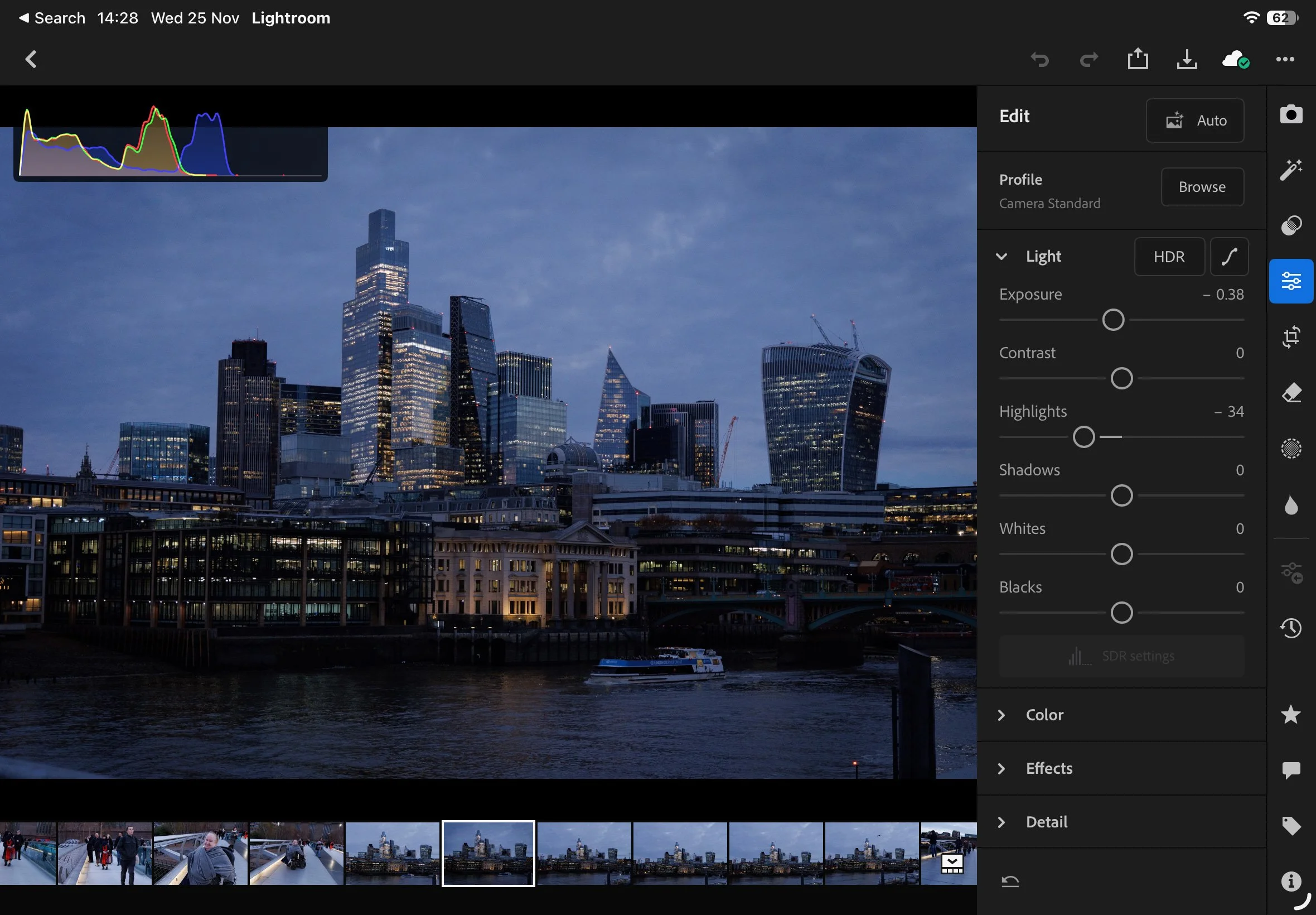
But there’s another, more practical reason. The iPad version supports filtering out JPEGs from RAW+JPEG pairs. The desktop version does not. As I always shoot RAW+JPEG pairs, not having the ability to do this is a pain, and I can’t for the life of me understand why the iPad version of Lightroom has this, but the desktop version doesn’t.
Anyway, I’ll often do some light editing on the iPad, and if I need to, I can export a few images to send via messaging or post to social media. Sometimes, all I will use is the iPad until I get home. The cool thing is, most modern hotel wifi is fast enough now that even while just browsing, it uploads your images to the cloud. Of course, this depends on how many you shoot and where you are, but I’m mostly in fairly good wifi and internet areas.
“Serious” Editing on my Laptop
If I need to do more comprehensive edits, I will switch to my Laptop. Because everything is in the cloud, I don’t have to do any kind of exporting and re-importing. It’s just there. Well, obviously, you have to download first, but that is surprisingly quick these days, at least to get the preview resolution. and while you’re working on one image the rest are downloading.
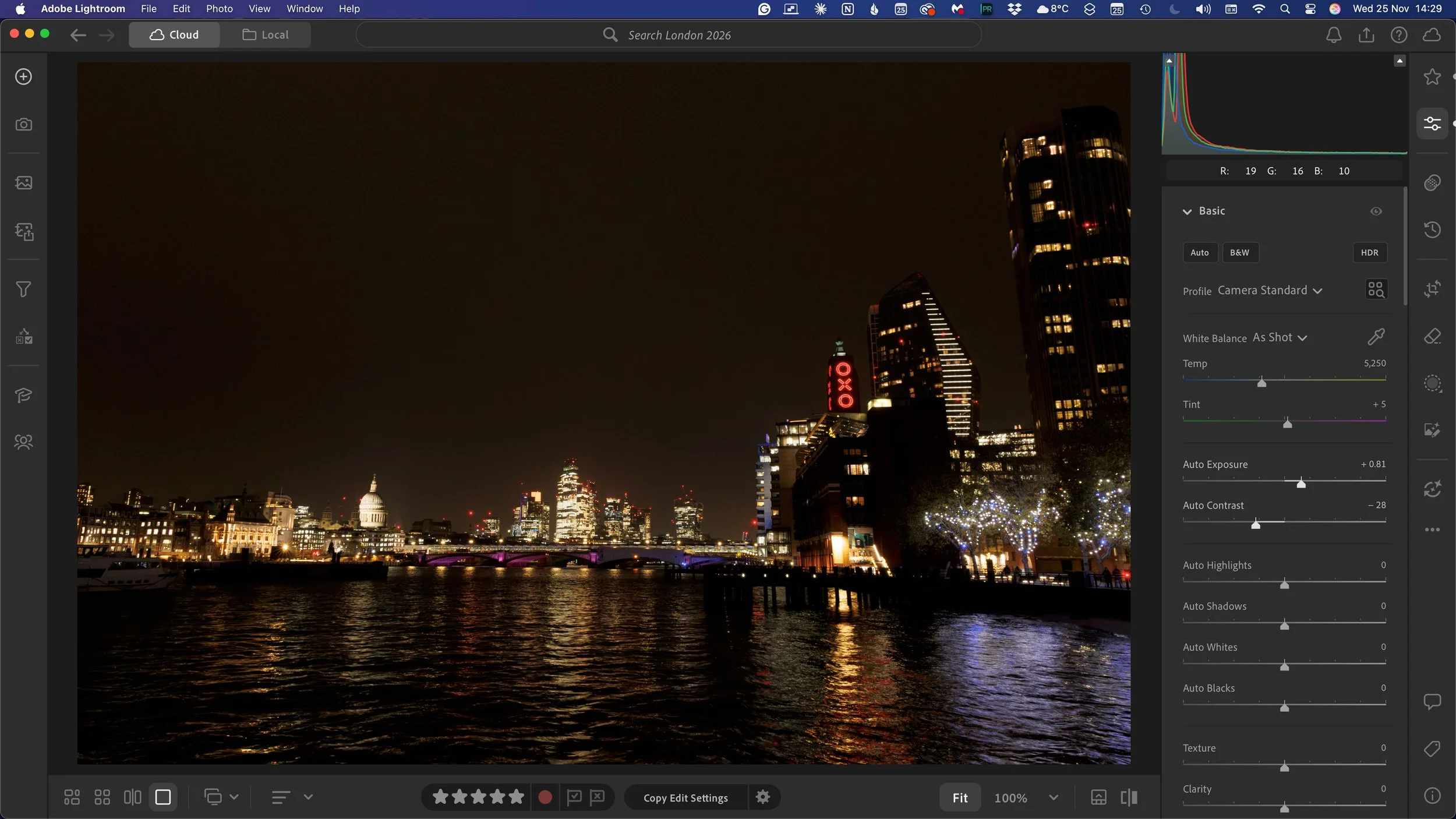
The reason you may need to use your desktop is that the iPad version still lacks quite a few features, although it is getting better. Some of the AI masking tools, for example. Also, it’s faster. It is actually one of the more frustrating things about the Lightroom ecosystem.
In my video, someone just asked, why not sync from Classic? Well, if you import to Lightroom Classic first, it will only sync smart previews to the other versions of Lightroom, not full-resolution images. Having full-resolution versions of your images available is actually really useful, as if you ever need to send them to someone, you have them anywhere, as long as you at least have your phone with you. Now obviously this doesn’t apply to everyone, but you get the idea.
Not only that, but I don’t have syncing turned on at all in Lightroom Classic. If you turn on syncing, it downloads everything, with no way to selectively download or to control the amount of space used. On desktop, you can set the amount of cache it uses, and it will dynamically keep the most recent or active images downloaded.
Opportunistic Editing on the iPhone
One of the nights I was away, I couldn’t sleep, and instead of doomscrolling on my phone in the middle of the night, I just played around with the image in Lightroom instead. (And then I doomscrolled!) Again, this is the beauty of working this way. You can just pick up your edits anywhere. Later, when I was out having coffee, I also took the opportunity to tweak a few things.
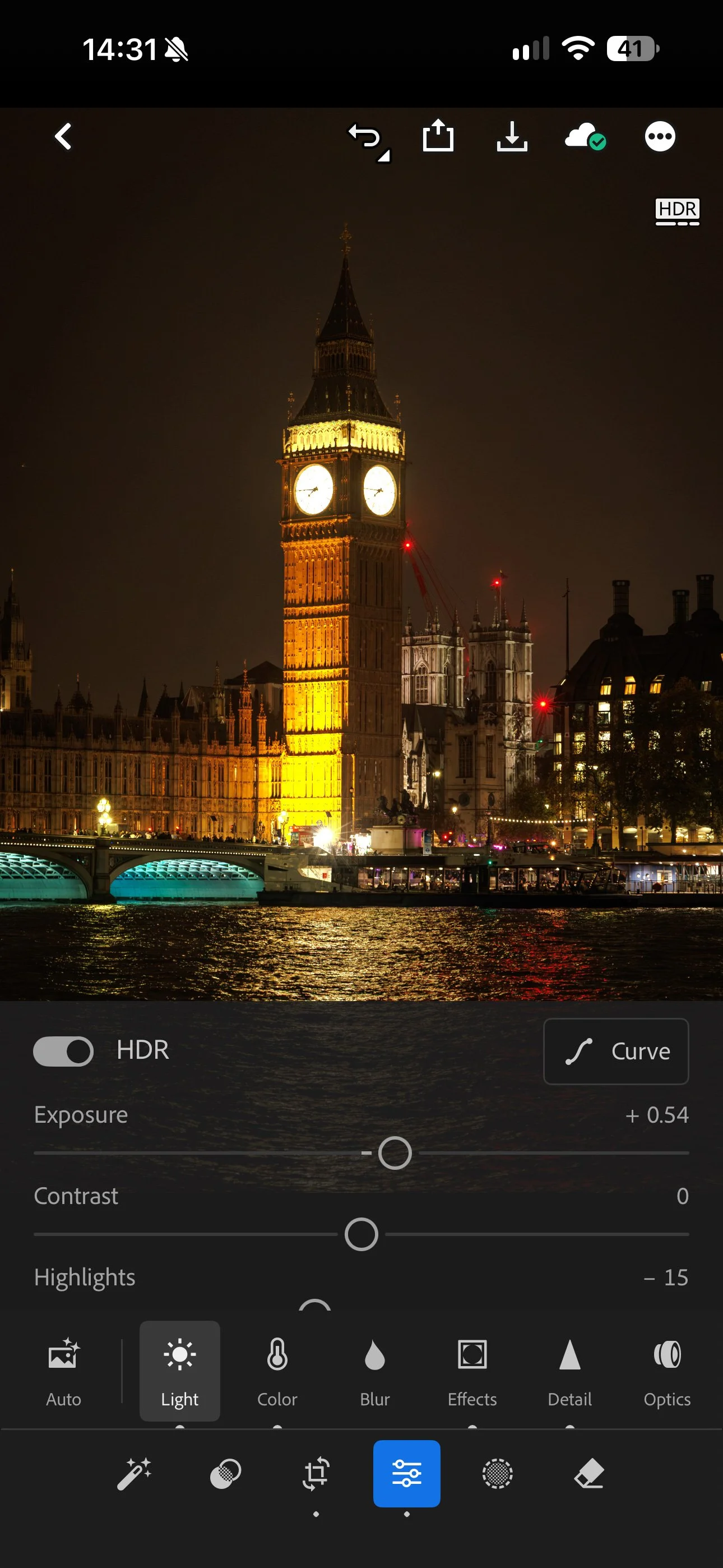
Another thing I did was make an HDR version of one of my images to post on Instagram. I could only do this on my phone because neither my iPad nor my laptop has a proper HDR screen. You can see the image here if you have a compatible device.
Back at the studio
Once I get back to the studio and I want to work on the images more earnestly, I could just keep editing them in Lightroom Desktop, but there are still tools that I prefer in Lightroom Classic, and there are too many fiddly things in Lightroom Desktop that are different, even with recent changes. Especially the lack of plug-in systems.
All I do is select the images from the trip and then export them as “originals plus settings”. This will then put them on my local drive (usually an external SSD that I have set to back up with Backblaze), and from there I will import them into Lightroom Classic. This will keep all the edits I had previously made. In an ideal world, Lightroom Classic would do a proper full sync with better control over what gets synced to Classic, and I wouldn’t have to do this step, but anyway. Now I have full access to all my tools, including plug-ins, and the print module for creating social media versions.
It’s not ideal, but it works for me.
As I said at the start, I’m not trying to claim that this is in any way the “best” workflow, or even a good workflow. It’s “a” workflow that works for me. In my dream situation, they would add all the remaining features of Classic to Lightroom Desktop, and we could skip that step, but I don’t see that happening any time soon. Alternatively, they could improve the syncing in Classic so that full-res images are synced, and you would have control over what gets synced from the cloud (you can control what gets sent to the cloud)
I know some people are probably going to say that you can’t possibly do that with the limited Creative Cloud storage, but I have the Pro plan with 20 TB of storage, and I am managing fine. It’s not even remotely full yet. You can just remove images if it gets too full, and then just send your five-star or selects back. I actually talked about this before in my equally ridiculous backup method.
If you use Lightroom and like the look of my photos, have a look at my Lightroom presets. FilmLUX Classic gives a film-inspired colour look, and T-PAN is my set of black-and-white film presets. Both are the same looks I use on my own work.
For more about photography, editing and travel, sign up to my newsletter. I also post editing tutorials and videos from my travels on my YouTube channel.