
Ever since it was announced that Apple was buying Pixelmator, I’ve been kind of obsessed with PhotoMator, the company’s Lightroom competitor. I actually had the software on my iPad for a long time but I never really used it that much. However, since the acquisition was announced I’ve been trying it more and more on my Mac, and I have to say it’s a really interesting application. It has some really nice features and its incredibly fast and responsive. Unfortunately, it is lacking some keys features which currently hold it back. Some of these you can work around but others are more problematic. But in my opinion it really has potential. In this post I’ll look at what you can do now to get around the shortcomings, and what Apple really needs to do to make the software more competitive.
The key problems with Photomator
In my opinion there are three key areas of Photomator that need to be improved. The editing features of the software are actually pretty good and while some of these tools could be better in my opinion, that’s not where the issue lies. Rather the main issues are with the software’s RAW conversion tools (or lack thereof) and its lack of organisational tools.
On the RAW conversion side there are two critical problems with the software that, for me at least, limit its usefulness as a professional tool. The first is the lack of any technical RAW tools. There is now way to correct for lens distortions or chromatic aberration. There is also no way to tweak the RAW sharpening algorithm. You can add additional sharpness, but there’s no way to adjust how much sharpening is added at the raw conversion stage. There is a roundabout way to solve this issue, but more on that in a minute.
The other big problem is the lack of camera matching colour profiles. Depending on the camera you are using this could result in minor differences or it could be way off. I tried some images from my Canon R6 Mark II and the RAW colours in Photomator were considerably different to what they should be (and quite unpleasant).
The final issue is that the digital asset management side of the software is somewhat lacking. You can connect it to Apple Photos and use that as your primary organising tool, but it’s not exactly in the professional league either.
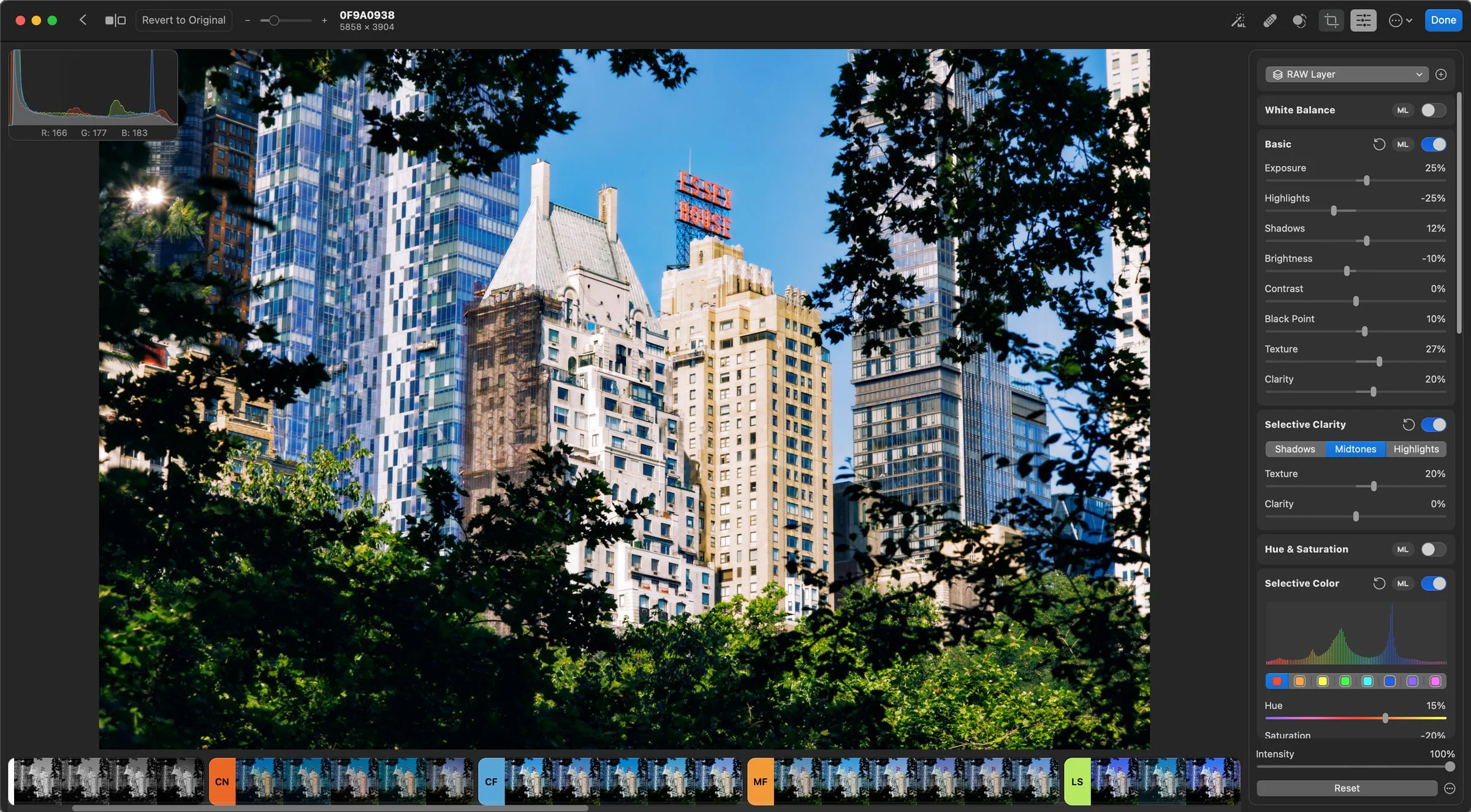
The lack of RAW conversions tools in Photomator and how to solve the problem.
Of the three main issues this is the one that you can sort of solve right now, in a roundabout kind of way. While the software currently relies on Apple’s system level raw conversion, there are no controls over the process. If your lens requires software based distortion correction, you’re out of luck with Photomator. Unfortunately more and more lenses require some kind of distortion correction. The same goes for vignette correction and chromatic aberration correction.
The solution is to use a RAW pre-processor application like DXO Pure Raw or one of Iridient’s Transformer suite of applications. While this adds to the processing time, and in most cases will increase file sizes, it does correct many of the issues that Photomator has with raw files. At least it does in terms of lens distortion issues. You can also control the amount of RAW sharpening at this stage too.
Incidentally, “Advanced distortion Correction Tools” is listed on the company’s roadmap, although whether or not this roadmap is still valid post acquisition remains to be seen.
Colour Profiles
Solving the colour profile issue is more of a problem. Currently there are no colour profiles or anything like that in the software. The closest function is the ability to add LUTS which might work, but isn’t really an ideal solution.
In fairness, the lack of profiles is understandable
Pixelmator is a small company with limited resources, and wouldn’t be able to profile every camera out there to match the in-camera colours. Apple on the other hand would have the resources to do this, but whether they do or not is another thing.
There is a “match colour” function in the software which uses AI to match the colour of two images, so in theory you could use this to match the RAW to the corresponding JPEG (if you shoot both). This is similar to the function recently announced in Capture One. Unfortunately it’s not great, at least from my testing.
Unedited image in Lightroom with the “correct” colours
The same image in Pixelmator showing the default colours. Note that the greens are more luminous in the Pixelmator version. The Lightroom once matches the camera and what was actually there.
The other option is to try and correct the colour of an image manually and then save the results as a preset to use later. You can also export adjustments as a LUT so that can work too. After trying this myself I was able to get reasonably similar results to the in-camera JPEGs and the output I was getting from Lightroom, but it still varies depending on the image and some are more off than others.
Of course how much of an issue this is depends on the user and the amount an image will be “off” will vary greatly from image to image. I’m sure for some this won’t be an issue at all. With a bit of tweaking and back and forth you may be able to get better results.
Organisation
The other big problem is the lack of good tools on the asset management side of the software. You can flag and rate images but you can’t even create albums. This is in the file management side mind you. You can also switch it to using the Photos browser, and in turn use Photos to manage your images, so that may be a solution but that brings issues too.
The future of this depends heavily on what Apple decides to do with the software. Aperture had a great asset manager and some really great tools for managing metadata too. While much of that code is well out of date by now, they could conceivably use the technology and patents from Aperture to bring this side of the software to Photomator.
Other Minor Annoyances
There are a few other minor issues that I would like to see addressed too, but these are relatively small compared to the previous big three. However, they are some things that you may find annoying if you try out the software.
The first of these is that highlight recovery sometimes isn’t as strong as it is on other applications, such as Capture One or Lightroom. It seems to depend on the camera though. This can potentially be problematic, although you can compensate by tweaking the other adjustments.
The Vignette tool isn’t great either, although to be fair, this is true of a lot of software. It only does a circular vignette and the algorithm does weird things. You can get around this by just using a radial gradient on another layer.
Conclusion
While I’ve focussed on the problematic areas of the software here, part of the reason is to highlight how close it is to being a major contender. I think if Apple actually does keep the software alive and not strip it for parts, and puts some resources into it, it could easily compete with Lightroom and Capture One. What’s more, the software is incredibly responsive and fast, especially on Apple Silicon.
Photomator has some really cool functions and tools, and I strongly recommend if you have a Mac or an iPad you download a copy and try it out. (You can try it out for a number images before having to pay). After playing around with it now for a week or so, I can really see the potential here. I really hope Apple does right by them.
In the meantime if you would like to see some tutorials and more coverage of the software let me know in the comments below.
Help Support the Blog
Check out my eBooks and Presets
Check out my photography eBooks , and Lightroom Presets available on GumRoad.
Subscribe to my YouTube Channel
Check out my YouTube channel for tutorials, Vlogs, and more!
Note that this post contains paid affiliate links. We get a small commission for purchases made through these links, which helps run this site.