
On rare occasions, you might encounter the need to update an AI mask in Lightroom, but unfortunately, there doesn’t seem to be a direct way to do so. For instance, if you use DXO Pure Raw and apply an AI mask to an image, since Pure Raw employs its own distortion correction algorithm, the mask may become misaligned when the file is returned to Lightroom. This issue can occur with any software that manipulates the raw file while preserving edits.
Image with a “Sky” mask applied
When you return to Lightroom, you’ll notice that the option to update the mask is absent from the masks panel or the menu. Therefore, how can you force the mask to update?
Mask is now misaligned
All you have to do is go to the Remove tab in the adjustments panel, and select any of the remove tools, such as the Heal tool. Now click anywhere on the image to activate the heal tool and make a quick correction. You will notice as soon as you do this there dot below the masks panel icon will turn red, indicating that a mask needs updating. Do not delete the heal adjustment you just made at this point.
Use the heal tool to force a mask to know it needs to be updated
Now all you need to do is go back to the Masks panel, select the mask that needs updating, and right click on it, and choose “Update AI Masks”. You can also find this in the menu under “Settings > Update AI Settings.” Alternatively, if you select the actual AI mask (rather than the mask layer) you should see an “Update” button at the bottom of the mask. This should re-calculate the mask and fix the problem.
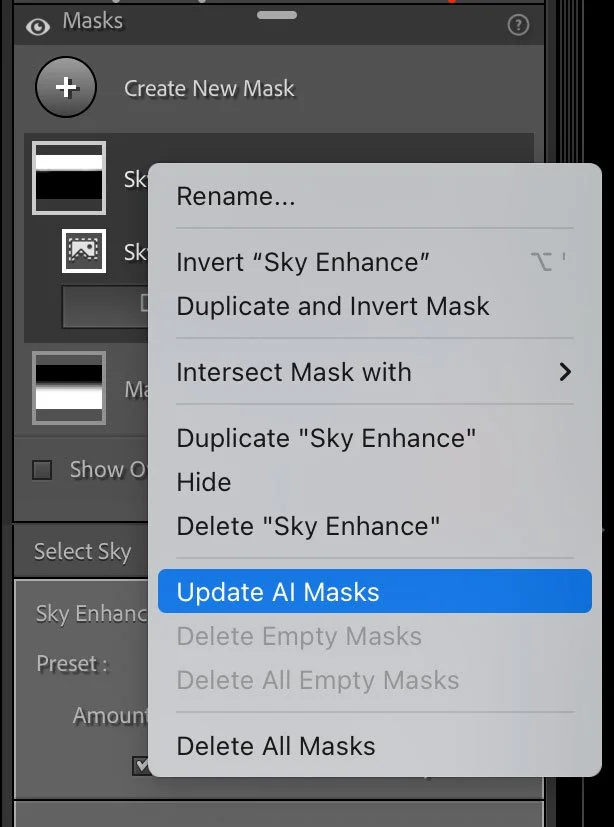
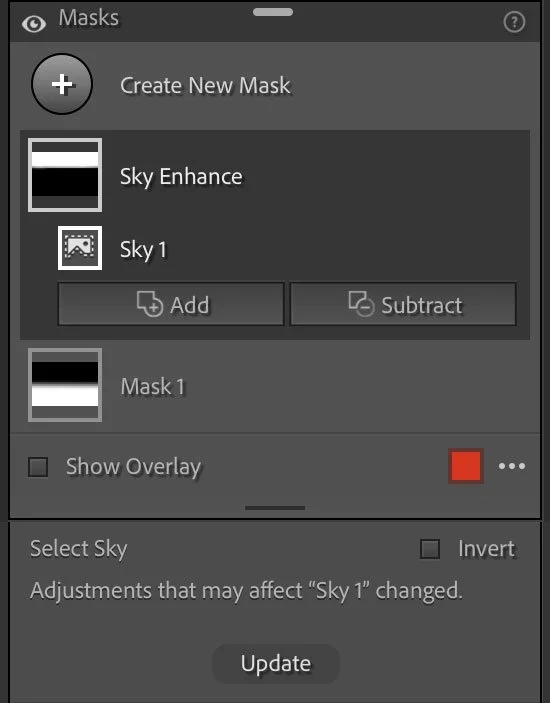
You can now go back to the remove tab and delete the heal tool correction that you just made. This shouldn’t cause another update.
This should now fix any AI mask mismatches or misalignments. In an ideal world, Adobe would recognise that if you sen an image to a pre-processing plug-in it may need updating and allow you to do so without having to jump through hoops, but for now this is a simple(ish) work-around.
Help Support the Blog
Buy from our affiliates
If you want to help support our blog, you can do so if you buy anything from our affiliate partners:
If you buy through the above links, we get a small commission, which helps run this site.
Check out my Capture One Style Packs, Lightroom Presets and eBooks
If you’re looking for some Film Effect, or black and White style packs for Capture One, Presets for Lightroom or Photography related eBooks, check out my Gum Road Store.
Buy me a coffee!
If you want to say thanks or help, then you can feed my caffeine habit and buy me a coffee via PayPal with a one off donation to my PayPal tip jar. (Please note that PayPal doesn’t make it easy to respond to these so just know you are thanked in advance)