
Capture One Adds Affinity File Format Support. How To Round-Trip to Affinity
Capture One and Canva have recently announced that Capture One will now support native Affinity files in the photo editing application. In conjunction with an update to Affinity, you can now open and save native Affinity format files in Capture One. I can’t emphasise enough how important a step this is. If you wanted to use Affinity with Capture One before this, you would have had to use the TIFF or Photoshop format, but that was an absolute pain for round-tripping because you can’t save directly in Affinity to TIFF or Photoshop; you had to export from Affinity and overwrite the file from Capture One or manually re-import. Now, round-tripping is basically as seamless as working with Photoshop.
This does require a little bit of setup in Capture One to get working. The first thing you need to do is make sure you have the latest versions of both applications. For Affinity, you need 3.2 or later, and for Capture One, you need 16.7.7 or later.
Next, you need to enable the application to be used in the “Open With” and “Edit With” menus. To do this, go to Capture One’s preferences and select the Plug-ins tab. From here, select the “Open With Menu” and find the Affinity application. Toggle the checkbox to enable Affinity.
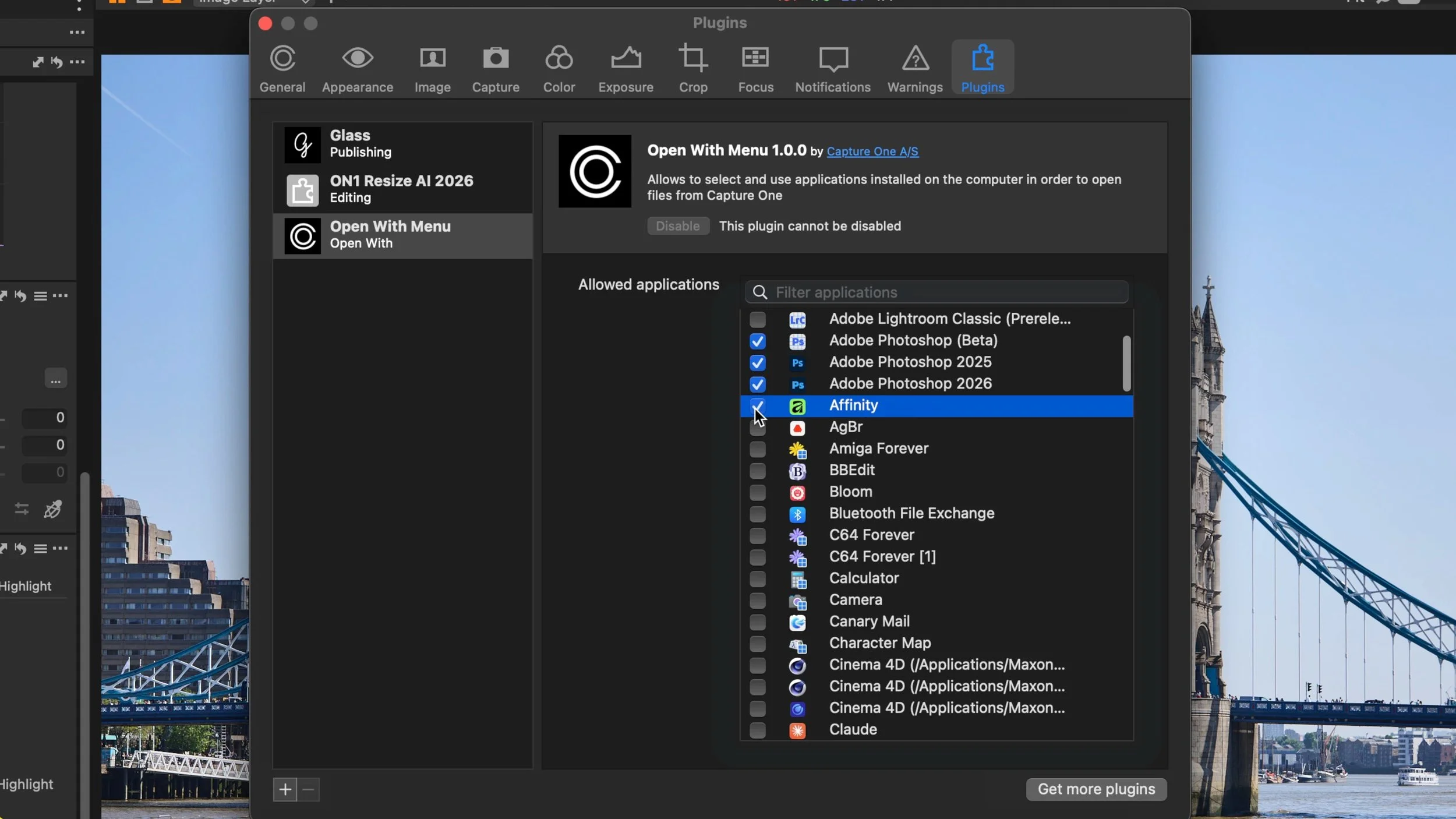
Once you’ve done this, Affinity should now show up in the “Edit With” menu. But there’s one more step.
Select the image you want to send to Affinity, then right-click the thumbnail and select “Edit With > Affinity”. (For some reason, mine said “Affinity Affinity Store” in the menu, but I presume that is some sort of weird bug.) The first time you edit, make sure you select “Edit With” and not “Open With”. This brings up the Edit With options. From here, the one thing you need to change is the file format. From the pop-up menu, change it from the default to “Affinity”. Now you can go ahead and edit in Affinity.
Once you’ve made your changes, select Save in Affinity, and this will save the file and send it back to Capture One. The edited version should now show up in Capture One as if you were using any other plug-in or software.
If you want to re-edit your file in Affinity, use the “Open With” command rather than Edit With. This will open the file back in Affinity, but if you choose Edit With, it will make a fresh copy and then edit it.
And that’s pretty much it. Once you have it set up, you shouldn’t have any issues in the future. The only thing I’ve come across is that it constantly resets the format to the default or, in my case, a missing one (it’s just blank) every time you go to edit in Affinity, so perhaps there are still some bugs there. Just be sure to set the file format each time.
Help Support the Blog
Check out my Capture One Style Packs
If you’re looking for some Film Effect, or black and White style packs for Capture One, check out my Capture One styles on my Gum Road Store.
Buy me a coffee!
If you’d rather not use Patreon, but still want to say thanks or help, then you can feed my caffeine habit and buy me a coffee via PayPal with a one off donation to my PayPal tip jar.