

Photo Editing, Tutorials, Photography News, and More
This blog covers a range of topics from Lightroom, Photoshop, Capture One, Fujifilm, Canon, Nikon, iPhone Photography, and more. If you want to see more of my actual photography work, visit my Portfolio and Photo Journal blog.

Luminar 3.1 Review
Today, Skylum Software releases the first major update to Luminar 3. The release brings a couple of new features along with lots of other fixes and tweaks. The two headline features of the new version are Accent AI 2.0 and Raw + Jpeg management. I’ve been trying the beta for a few days and here’s what I found.
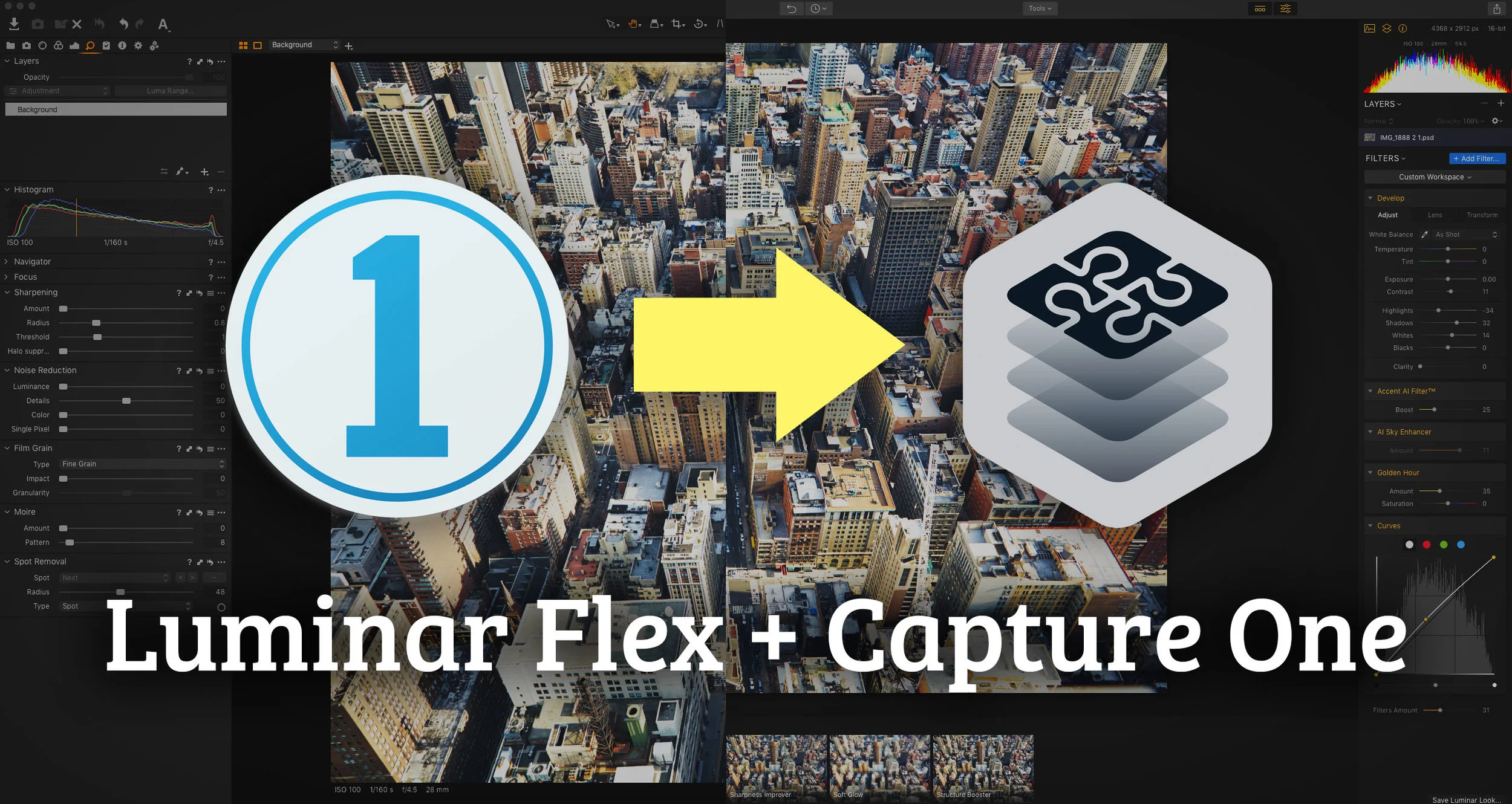
Video: How to use Luminar Flex in Capture One
While it’s not directly supported, its relatively easy to get Luminar Flex to work in Capture One. There are two main ways to do it and in this video I show you both methods and the pros and cons of each.

Luminar Flex Announced
Skylum has just announced Luminar Flex. This is basically a plug-in only version of Luminar. It seems as if they are planning to fork Luminar into two different products. Luminar Flex, which will be the plug-in version and then Luminar 3 which is the complete standalone software.

Luminar 3.02 Released.
Skylum has released Luminar 3.02 which features a fairly long list of bug fixes and improvements. I haven’t had a chance to fully test this personally yet, but below is the list of what’s been fixed, added or changed. If you already have Luminar, you can upgrade by choosing “Check for Updates” in the Luminar 3 menu on the mac or the Help menu on a PC.

Luminar 3 Review
It’s been over a year since the developers of Luminar teased that the upcoming asset management side of the software would come as a free upgrade to Luminar. Since then, people have eagerly waited for it, but for the longest time, it seemed like the rollout was getting further and further away. Finally, the first iteration of Luminar with this new “library” add-on is here. Unfortunately, it’s not quite what I think people were expecting. It’s a step in the right direction, but the software still has a long way to go.

Luminar 3 With Libraries: A First Look
I’ve been a fan of Luminar ever since it first came out. The reason is that I like it so much is because it is a powerful piece of software and it doesn’t try to be like anything else. It’s not trying to be a Lightroom clone. It has a lot of unique features, and I find editing with it to be a fun and artistic way of working. But it’s always had a few limitations, and the biggest of which has been the fact that it has been a single image at a time editor. That’s about to change.

A First Look at the new Sky Enhancer Filter in Luminar
The latest update to Luminar has just been released and it contains the new “Sky Enhancer” filter which Skylum have been plugging for a little while. The feature is another of the companies AI tools and it is specifically designed to enhance skies.

Lots of new stuff coming to Luminar
I realise that I’ve been covering Capture One quite a bit lately, but that’s mainly because of the announcements around Photokina regarding its partnership with Fujifilm. However, there’s lots of other software related news and releases, and I haven’t quite kept up with it all. Skylum, in addition to launching Aurora HDR2019, has also been making some announcements regarding Luminar, all of which are pretty interesting.

Video: Luminar Raw Image Editing Tutorial
I’ve been trying to catalogue a drive full of Raw files going back several years (more on that in a future post), and during the process, I got sidetracked and started playing with some of the older images. I came across one shot that I had taken in Washington DC a few years ago, which I really liked at the time, but now I realise that I had over-edited it originally. I wanted to have another go at it, and so I thought It would be interesting to try it in Luminar, and it would make a good tutorial.

Luminar Flash Sale
Skylum software is having a flash sale on Luminar for the next four days from today, Thursday, July 19, through to Sunday, July 22. I normally don’t post these offers, as everyone who is on the affiliate programme will be shortly, and my RSS reader gets full of the same post, but it’s a pretty good deal, so I’m going to make the exception this time.

Processing Fuji X-Trans Files in Luminar Jupiter
When Skylum released the latest version of Luminar last month it had some significant improvements to the RAW processing engine. This included some much-needed features such as a significant speed increase and automatic lens corrections. I wanted to see how well it could now be used as a RAW processor for Fuji files, and so I put it through its paces and came up with some basic workflows.
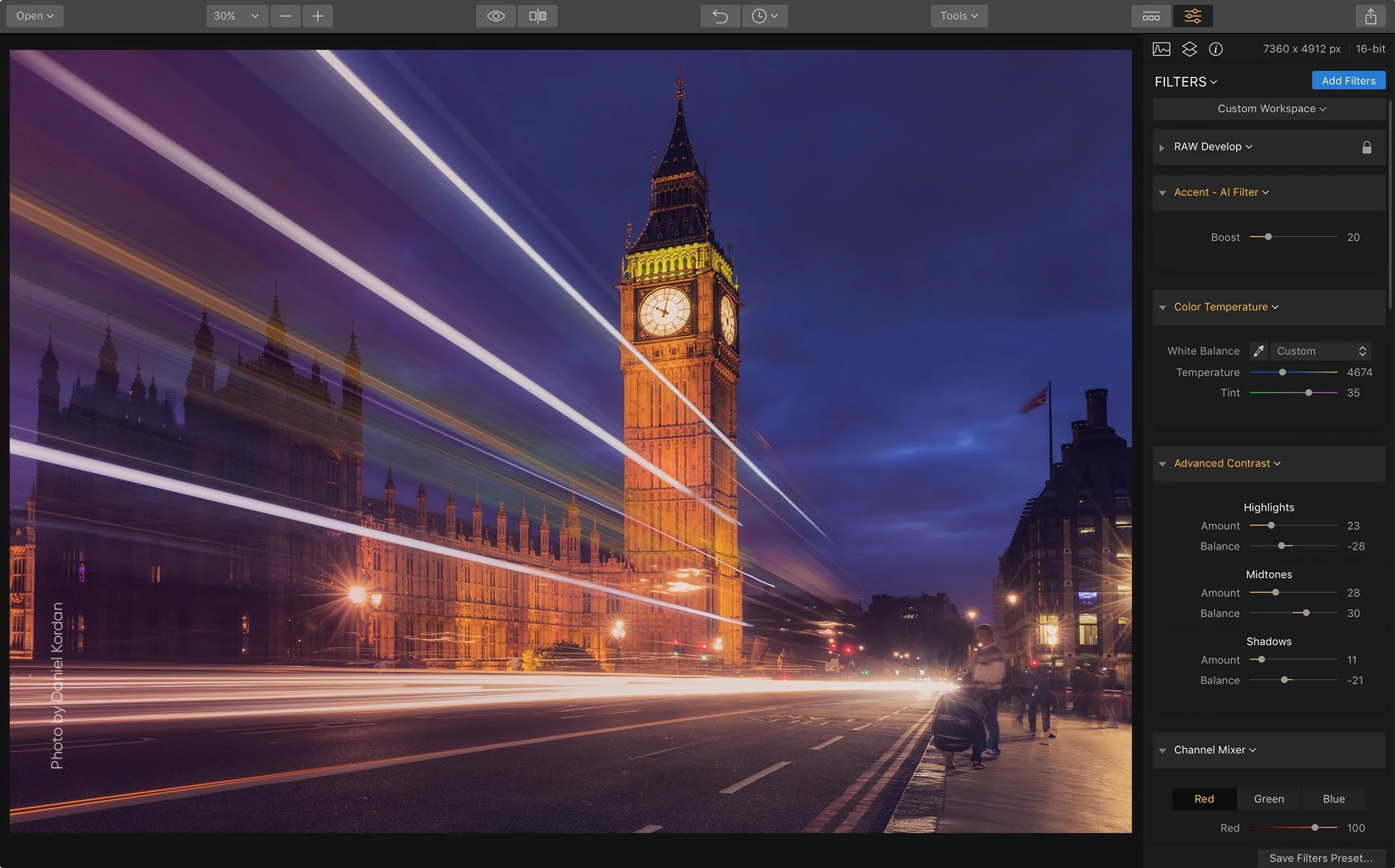
Luminar 2018 Jupiter Released - A Quick First Look
Skylum today announced the release of a significant new version of Luminar. The update 1.2.0 for Luminar 2018 includes lots of new features (they claim over 300 improvements) but there are a couple of fairly significant ones that I’m going to cover. The most notable of which is a dramatic improvement in the speed of opening and working with raw files. They’ve also added automatic lens correction (finally) and support for DCP colour profiles (not to be confused with Lut mapping).

Video: Luminar Quick Tip - The Right way to Use Sunrays
I’m starting a new series of Luminar QuickTips on my YouTube channel and I’ve just posted the first of these. In the video, I look at using the Sunrays filter to enhance an image that already has a sun in the shot.

How to quickly get better RAW colours in Luminar
One of the issues that I have when using RAW files in Luminar is that the colours are often a little flat and the contrast is a bit washed out. This comes from RAW files not having a proper profile in the software, and while it has improved in recent years, it’s still a ways off from the default results that you would get in the likes of Lightroom or Photoshop.

Using Luminar non-destructively from Photoshop and Lightroom
I was playing around with some photos in Photoshop earlier today, and I was also using Luminar as a plug-in, when I stumbled across something cool, almost by accident. It’s one of those things, that seems kind of obvious on hindsight, but I had never thought of trying this before. You can use Luminar non-destructively within Photoshop if you use it on a smart layer.