
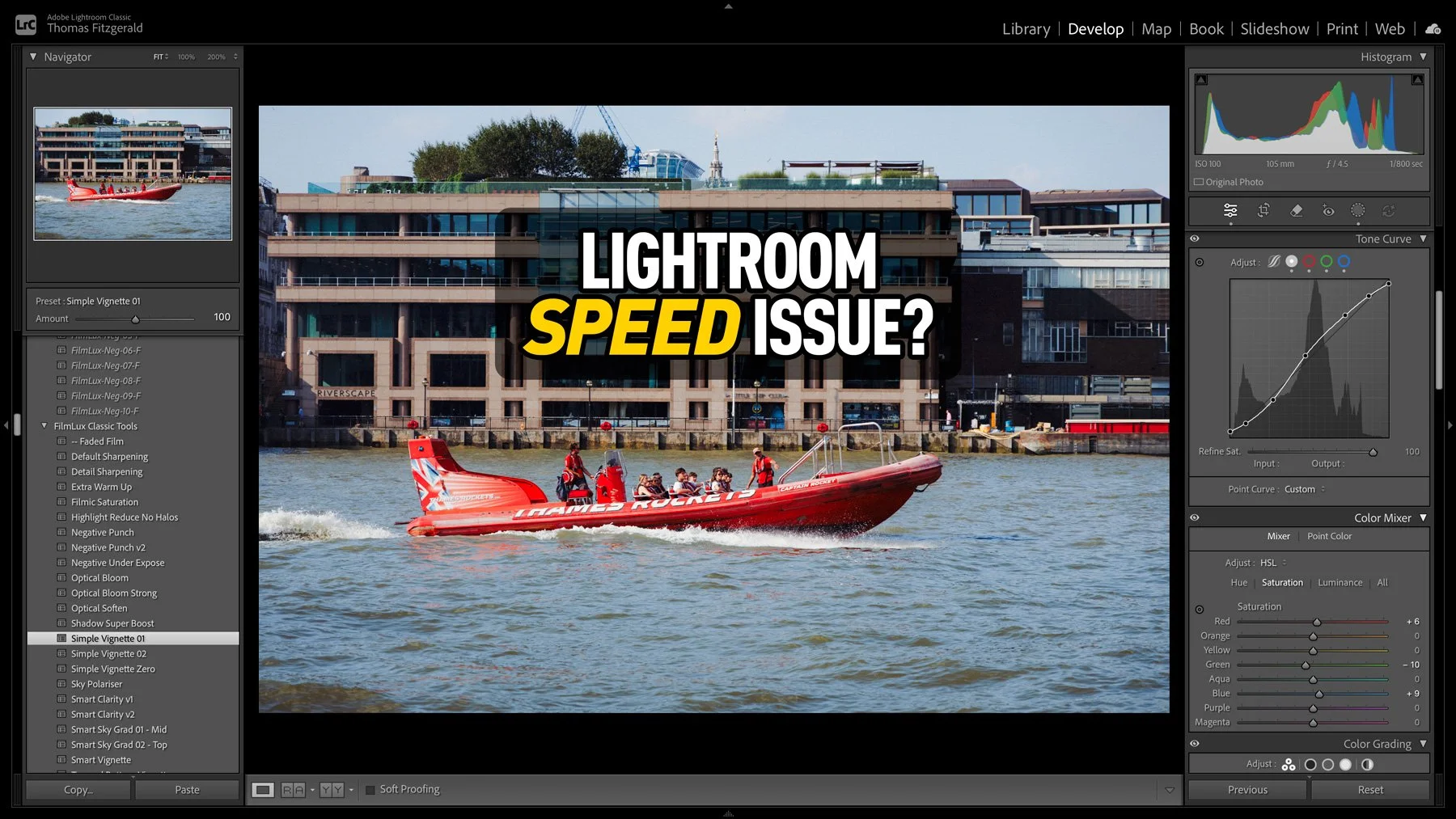
I had taken some photos over the weekend, and I was processing them in Lightroom when I noticed that the software was acting unusually. When I applied a preset, the preview worked perfectly, but it took a few seconds to actually apply. At first I thought that maybe this was an issue with the new version of Lightroom, so I quit and restarted. It was then that I noticed another weird issue: the software was still trying to write the metadata to disk. So I thought that maybe my disk was running out of space. I checked, and there was still lots of room. Curiouser and curiouser I thought. While it turned out not to be a disk space issue, I was actually close to the source of the problem, thinking it was disk-related. But let me back up a minute.
Were SSD issues slowing down Lightroom?
My main workstation is a Mac Studio with an M1 Max processor and a 1 TB internal drive. As this isn’t much space, I keep my Lightroom catalogue on an external drive, a Samsung T7 SSD. I basically use this as an overflow for stuff that I would normally keep on my system drive. My actual photos are stored on a different SSD. I’m always having an issue with space, especially on my system disk. It’s recommended that you keep at least 10-15% of an SSD free for optimal performance and to avoid issues, and I normally do that, so that’s why I checked to see if I had been running out of space.
I don’t know what made me think of it, but just to be doubly sure something wasn’t gumming up the works somewhere, I opened Blackmagic Speed Disk to test the speed of the SSD. I was thinking it was a possible problem with too many things connected to my Mac Studio, but anyway, the result quickly found the cause of the problem. My Samsung T7 was running slowly. Ridiculously slowly.
The drive normally has a transfer speed of around 800 MB/s, but the write speed had slowed to just 60 MB/s.
“Well, there’s your problem”!
Now, there are lots of things that can slow down an SSD to this extent. I also had my Parallels disk images on this for when I need to run Windows, and I had been running it, so I thought maybe this had used all the disk space temporarily and the drive was still clearing its cache. But it wasn’t that. I tried clearing some more space and leaving it for an hour to see if it would improve, and it did, but only by a few MB/s. At this point I was beginning to think the drive might be dying, which was the last thing I needed, but a quick Google search revealed that this is a common problem with the Samsung T7. The solutions weren’t exactly forthcoming, though. Eventually, I just copied everything off, reformatted it and put everything back. That solved the issue. For now, anyway. If it happens again, I will definitely replace the drive. One thing I did do was change the format. It had been “Mac OS Extended Journaled”, but I took the opportunity to change the partition to the newer APFS. Samsung does have software to manage their drives, but its Mac version is terrible and requires you to mess around with the boot settings and security settings on your Mac, and I wasn’t in the mood for that.
So what does this mean for Lightroom speed?
Once I had everything back on the newly formatted drive, I checked the speed again, and everything was back to normal. The drive was performing at its standard speed, and so I hoped this had solved the issue. I waited another while just to be sure and checked again, and it was still fine, so I fired up Lightroom, and sure enough, it was back to its old self.
So what’s the moral of the story?
Almost every day I see someone on social media complaining about Lightroom that it suddenly slowed down and assuming it was all Adobe’s fault. This is especially the case after an update. The thing is, though, it’s rarely the software itself causing an issue directly. Now, you could argue that it should be more robust, and it should be better able to handle things, and that could be a fair point. But I have been testing Lightroom thoroughly for years, including running beta versions, and it’s almost always something wrong on your system or configuration if the software suddenly slows down. Well, in Lightroom Classic anyway. Unfortunately, you have less control over things in Lightroom Desktop. Occasionally there are issues with new versions, but these are usually well reported and are usually fixed pretty quickly, at least in recent years.
Note that this post contains paid affiliate links. We get a small commission for purchases made through these links, which helps run this site.