
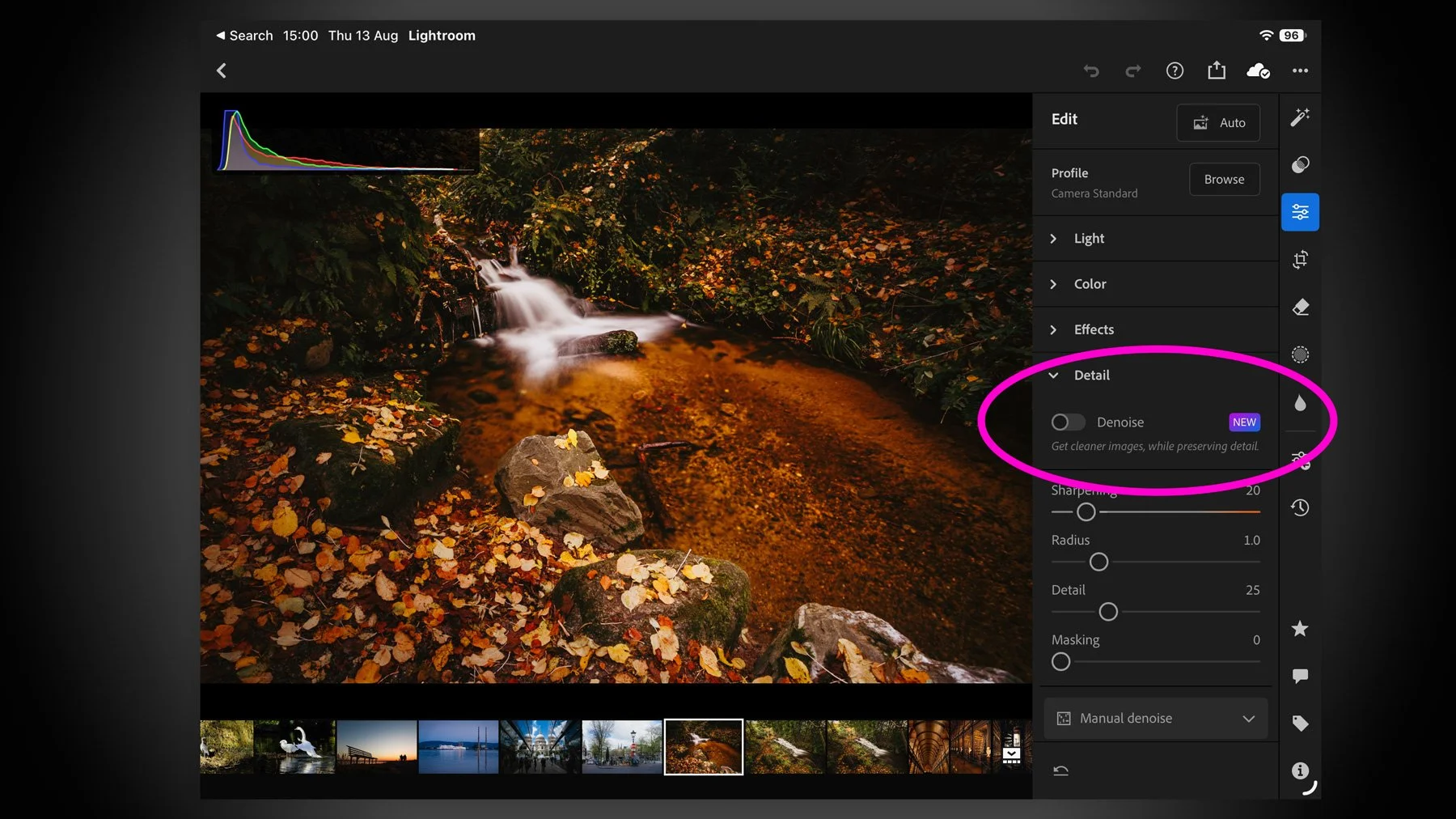
I missed this when the recent round of Adobe Photography updates dropped for August 2026, but they added a much-requested and long-missing feature for Lightroom on the iPad. There’s not much point in me teasing it, as it’s in the title, but yes, Lightroom on iPad finally gets Denoise. And it actually works pretty well.
How to use Denoise in Lightroom on iPad
To use Denoise on the iPad, you’ll need to be using Lightroom version 11.5 or later, and I suspect it’s only available on certain iPads. I’m using an older iPad Air with an M1 processor, and it works fine for me. I can’t find any proper support notes which list system requirements, so let me know if you have an iPad that’s not supported. If not, I’ll assume anyone capable of running this version will work.
To use the new Denoise feature, just go to the detail panel in the edit section and tap on the Denoise button to turn it on. Lightroom will first download the full-resolution image if it’s only using a smart preview or proxy. Then it needs to download the AI model for it to work. So the first time you use Denoise on the iPad, it will take a little longer. Once it’s done this, it will then apply Denoise itself. On my older M1 iPad Air, it took about 30 seconds, although I didn’t time it exactly. I suspect if you have an iPad Pro or an iPad Air with a newer processor, this would be much faster.
Conclusion
That’s pretty much all there is to it. Other than having to download the model the first time, it pretty much works the same as the desktop version. There’s no sign of super resolution yet, and the iPhone version of Lightroom gets generative expand, but the iPad version does not for whatever reason.