
The topic of processing Fujifilm X-Trans files is something I’ve been covering on this blog ever since the original Fujifilm X-Pro 1 came out way back in 2012. Over the years, I’ve done my best to come up with ways to get the best out of Fuji’s unique sensor design. In particular, I’ve dealt with ways to get around the idiosyncrasies of Lightroom’s handling of said raw files. I’ve discussed different sharpening techniques, alternative software, and I’ve even published a popular eBook on the subject.
However, with the latest release of Lightroom, Adobe has made the whole process much simpler. And while it’s still not perfect, in terms of workflow, it's now so simple to get great results and without much of a cost, that I no longer think it’s necessary to treat Fuji files any differently than normal raw files. Well, except for a single checkbox, that is.
While I acknowledge that not everyone saw a need to treat X-Trans raw files any differently in the first place, I believe many users appreciated that Lightroom was perhaps not the best software when it came to rendering detail with Fuji files, at least not with the defaults (based on the comments I’ve received over the years). You could kind of compensate to an extent by changing the sharpening settings, but when the “Enhance” Raw Details function came to Lightroom, Adobe included in it, an alternative demosaicing algorithm, that much improved the quality and rendering of fine details in Fujifilm X-Trans raw files. The downside is that to use this function, you had to create a DNG file, which was about three times the size of the RAW file. This process eliminated most of the artefacts that people took issue with, including the infamous “worm” artefacts, but at the expense of time and disk space.
In the past, my advice was always that it was worth it to run your images through this process if you wanted the best image quality without having to use additional software. While some people insist that there is no difference, I have covered time and time again as to why it makes a difference, and so I’m not going to re-litigate that. However, if you don’t believe there is a meaningful reason to do anything with your Fujifilm raw files and that Lightroom’s defaults are fine, that's fine with me, as everyone’s needs are different. I wish you well, and you can probably stop reading now. To be fair, on newer X-Trans sensors, such as the 26mp X-Trans 4 and 40mp X-Trans 5 it’s less noticeable, but there are still issues and the more you edit your raw file the more these issues show up.
So what is the process now?
Well, the trick is to still use Raw Details, except that now, as of Lightroom Classic 14.4, using RAW details no longer requires the generation of a separate DNG file. You can simply toggle the setting on and all Lightroom has to do is calculate the AI demosaicing. This only takes a couple of seconds, and only adds a small amount of disk usage to your catalogue files. You can even apply this on import (although it requires a small workflow process to do this). As this is literally just a checkbox now, and the benefits are worth it, unless you’re rushing and processing thousands of files, I heartily recommend that you check this on all your fuji files.
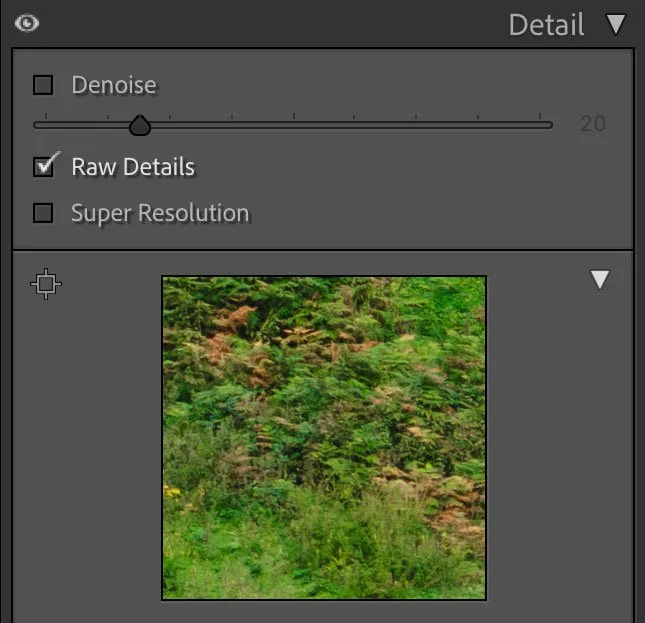
Turn on Raw Details in the Detail Panel
To activate RAW details, simply go to the Detail panel in the Develop module and check the checkbox for Raw Details. This will take a few seconds to do the AI calculations, and then you will have the improved demosaicing. Once you do this, you no longer have to treat the file any differently from any other raw file. You no longer have to use any special sharpening settings to avoid worm artefacts etc. It’s literally just that one checkbox.
I covered how to batch process this in a previous post. While that was concerned with batch processing Denoise, the process is exactly the same if you’re just doing Raw Details. I also showed how to apply Raw Details (and Denoise) on Import.
What about Denoise?
So the next question is whether or not to use Denoise on your images as well. Personally, for the past year or so, I apply a small amount of Denoise to all my fujifilm X-Trans raw files. I usually use a value of 20% or so, and I find that the results, while sometimes a bit subtle, do make a difference, especially if you’re doing further editing. In the past, you really had to make the decision to do that at the time of processing raw details, as otherwise you would have to go back to the original RAF and make another DNG. In Lightroom 14.4 though, now all you have to do is check the checkbox for Denoise, let it calculate and then adjust the settings.
Again, you can batch process this or apply it on import. Just create your preset to apply the settings on import, and then use the workflow I shared in the last post. You could even create an ISO Adaptive preset to apply different Denoise settings dependent on the iso of the image.
Alternative options
If you still aren’t happy with Lightroom’s output, or you don’t like the new process introduced in Lightroom Classic 14.4, there are still alternatives. There are two options for pre-processing your raw files into DNGs that will still work with Lightroom.
The first is Iridient X-Transformer. This is the original pre-processing application and many still use it. Its big advantage is that it can use Jpeg compression in the DNG file, making for a smaller DNG than the alternatives (including the old pre 14.4 Lightroom method). However, in my opinion, it’s not really worth the difference. If you don’t already have this software, I’m not sure if there’s a lot to be gained, that you won’t get by using the Raw Details option, especially now that it doesn’t need to make a DNG file.
PureRAW 5 vs RAF. Click to view larger
The other option is DXO Pure RAW. If you have a 26mp, 24mp or 16mp Fujifilm X-Trans camera, then the new algorithm in the latest version of PureRAW is probably the best at extracting detail from a Fujifilm raw file. I covered this in a previous post, but the results are kind of amazing. Unfortunately, it doesn’t yet support 40mp X-Trans 5 images with its dedicated Fujifilm algorithm, and in my opinion, the other process that it uses for these cameras isn’t as good. Still, you can download a trial version, so it might be worth trying out. Personally, I don’t use it on every file (as it can take a while to process) but for images where I want to extract maximum detail, I will use it.
What about my X-Trans guides?
I think it’s time to say goodbye to these. My X-Trans Lightroom guide is quite out of date now. Every time I’ve gone to make a plan to update it, Adobe has changed something in Lightroom, and I’ve had to rethink how to approach a new guide. I’ve been putting it off for so long, I think the moment’s probably past. To be honest, I’m not sure if there’s even a need anymore. I mean, all you have to do is check the one checkbox, and then you treat it like it’s any other file. Having said that, there are still some other workflow things and other features that may be worth covering, so what do you think. Should I do a new guide, or should I just call time on it? Should I take a different approach altogether? What would you like to know? Either way, I will be discontinuing the current version shortly.
Help Support the Blog
Check out my eBooks and Presets
Check out my photography eBooks , Capture One Styles, and Lightroom Presets available on GumRoad.
Subscribe to my YouTube Channel
Check out my YouTube channel for tutorials, Vlogs, and more!
Buy me a coffee!
If you want to say thanks or help, then you can feed my caffeine habit and buy me a coffee via PayPal with a one off donation to my PayPal tip jar. (Please note that PayPal doesn’t make it easy to respond to these so just know you are thanked in advance)
Note that this post contains paid affiliate links. We get a small commission for purchases made through these links, which helps run this site.