All in Capture One

A Cool Capture One Feature You May Not Be Aware Of - Working With Offline Images

As I’ve recently started using my Laptop as my full time computer for everyday tasks, I recently came to appreciate a feature of Capture One, that not many people may be aware of. I knew about this feature, and I’ve briefly mentioned it before, but it’s only in the past few months that I came to really appreciate it. If you’re working on a catalogue, and your originals are stored on an external drive, you can disconnect that drive and continue to work off the previews.

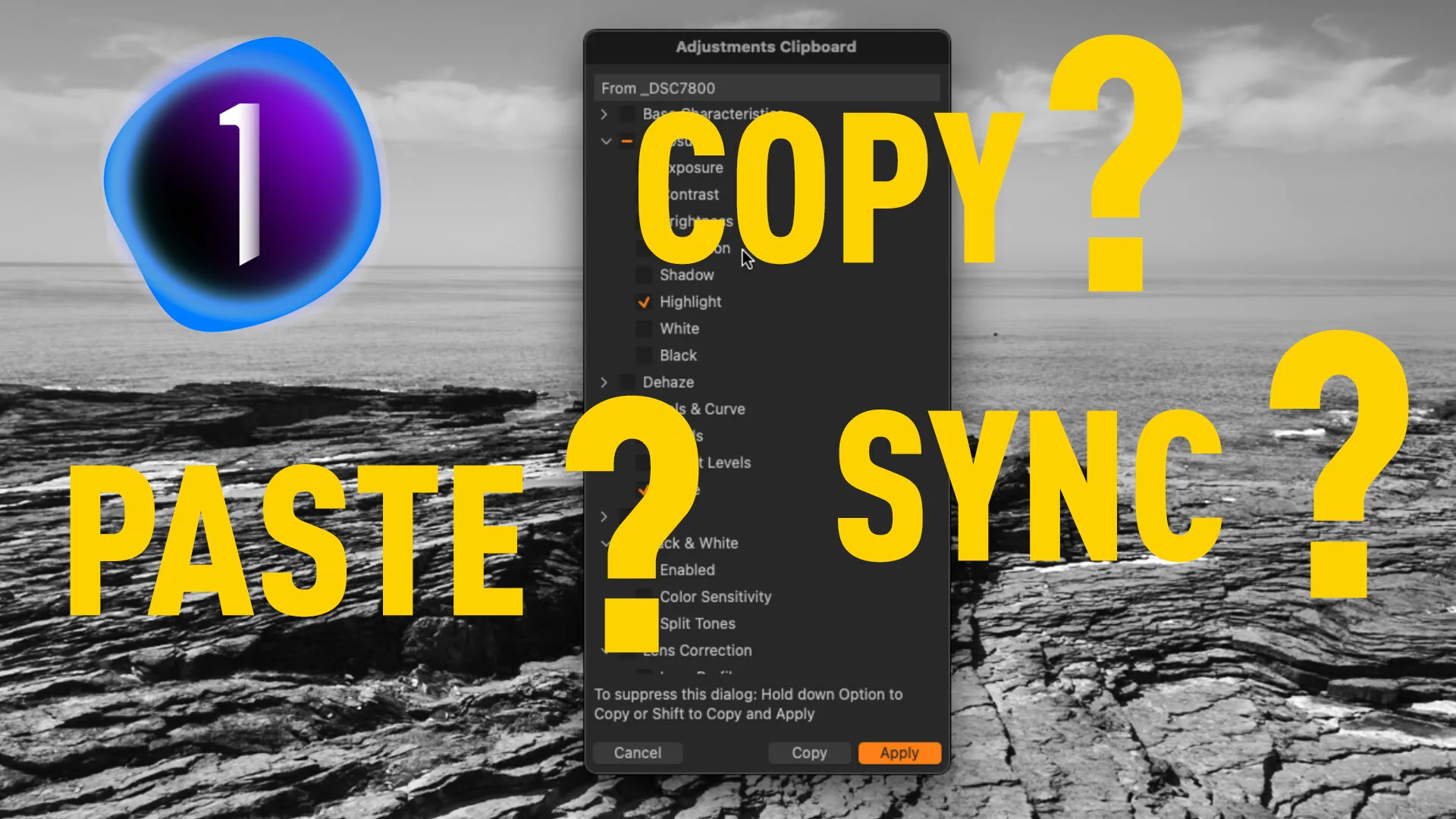
How to Sync Settings in Capture One (How to use the Copy and Apply Adjustments Tool)

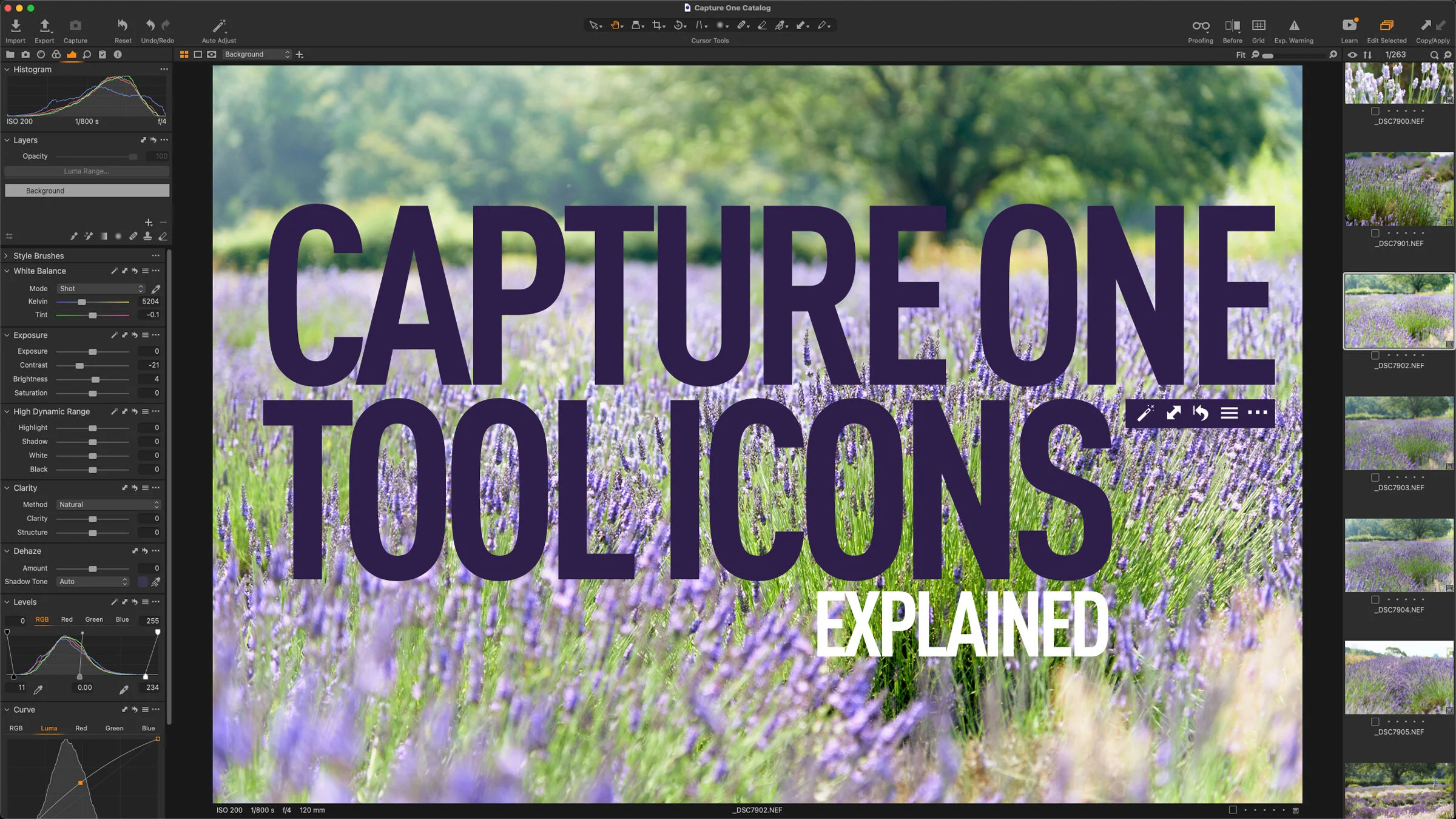
In a recent blog post I covered the icons on the top of each of Capture One’s tool panels, and part of that was how you can sync settings from an individual adjustment panel. Based on the responses I got, it occurred to me that the way you sync settings in Capture One is a little confusing, especially for Lightroom switchers, and so I decided to make a video to explain it.

How to do Recipe Proofing in Capture One 21 14.3

With the latest release of Capture One that was announced last week, the company changed the way you export images from the software, adding a new interface. They also removed the old output tab which had the processing options in it. This has led to some confusion among long time users about how to do certain things now. The one I’ve seen requested the most is how do you do recipe proofing now? Well, it’s actually not that different.

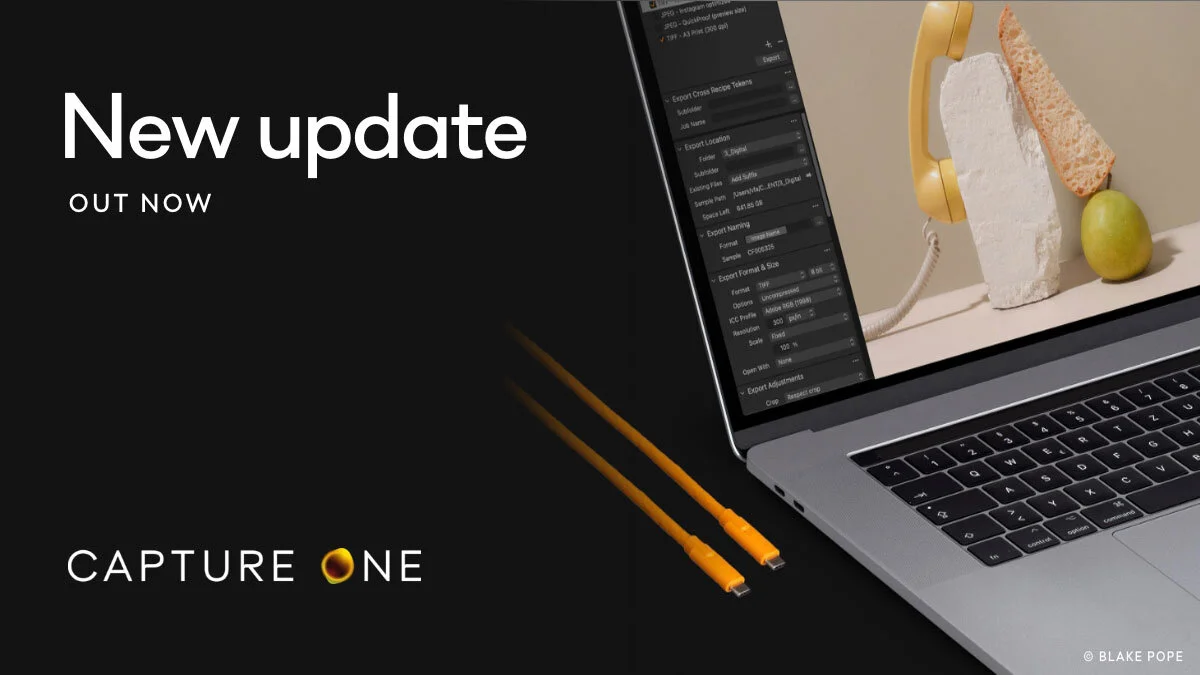
Capture One Update: Capture One 21 14.3 released with Magic Brush, New Export Interface and More

Capture One today announced the latest point release for Capture One 21 and it contains a couple of new features. The company has been on a roll of late, with each point release adding new functionality to the software. This release sees a new export interface added, a new “magic brush” for making quick selections, and a much requested change to the way catalogues handle sub-folders.

Save 10% on Capture One

As a quick follow on from my recent updated post on Capture One vs Lightroom, just a quick note to say that if you’re considering getting yourself a copy of Capture One, you can now gat a 10% discount on any version of the software by using the code in this post.

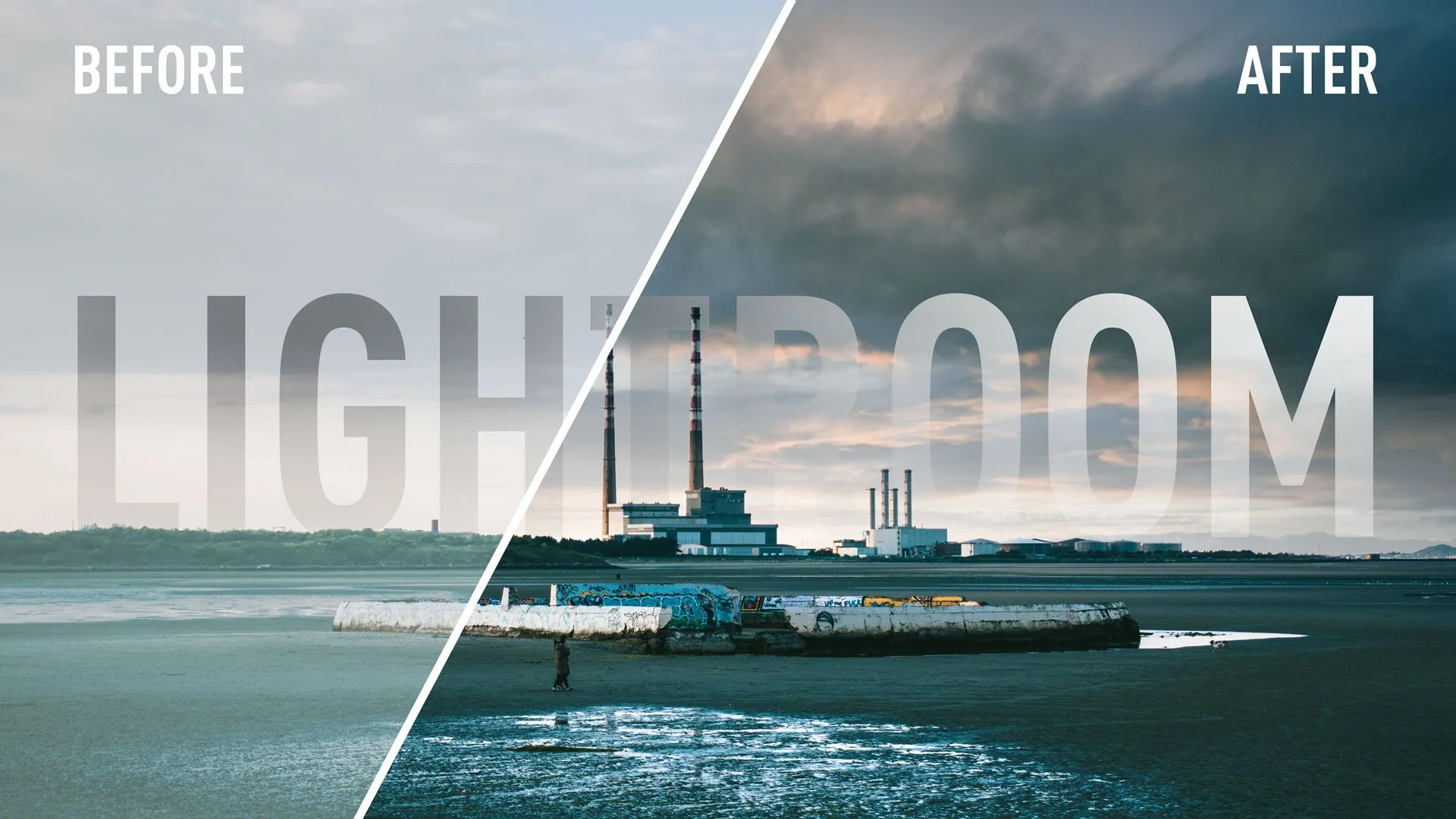
Capture One vs Lightroom from someone who uses both (Updated for 2021)

I first wrote this article last year, and since then it has become my most popular post on this blog. However, since last year, both applications have continued to develop, and both have had several new features added and both have changed the way they perform, so I felt that it was important to update this article. While the bulk of this will still be the same, there are a few things that have changed that are worth pointing out.

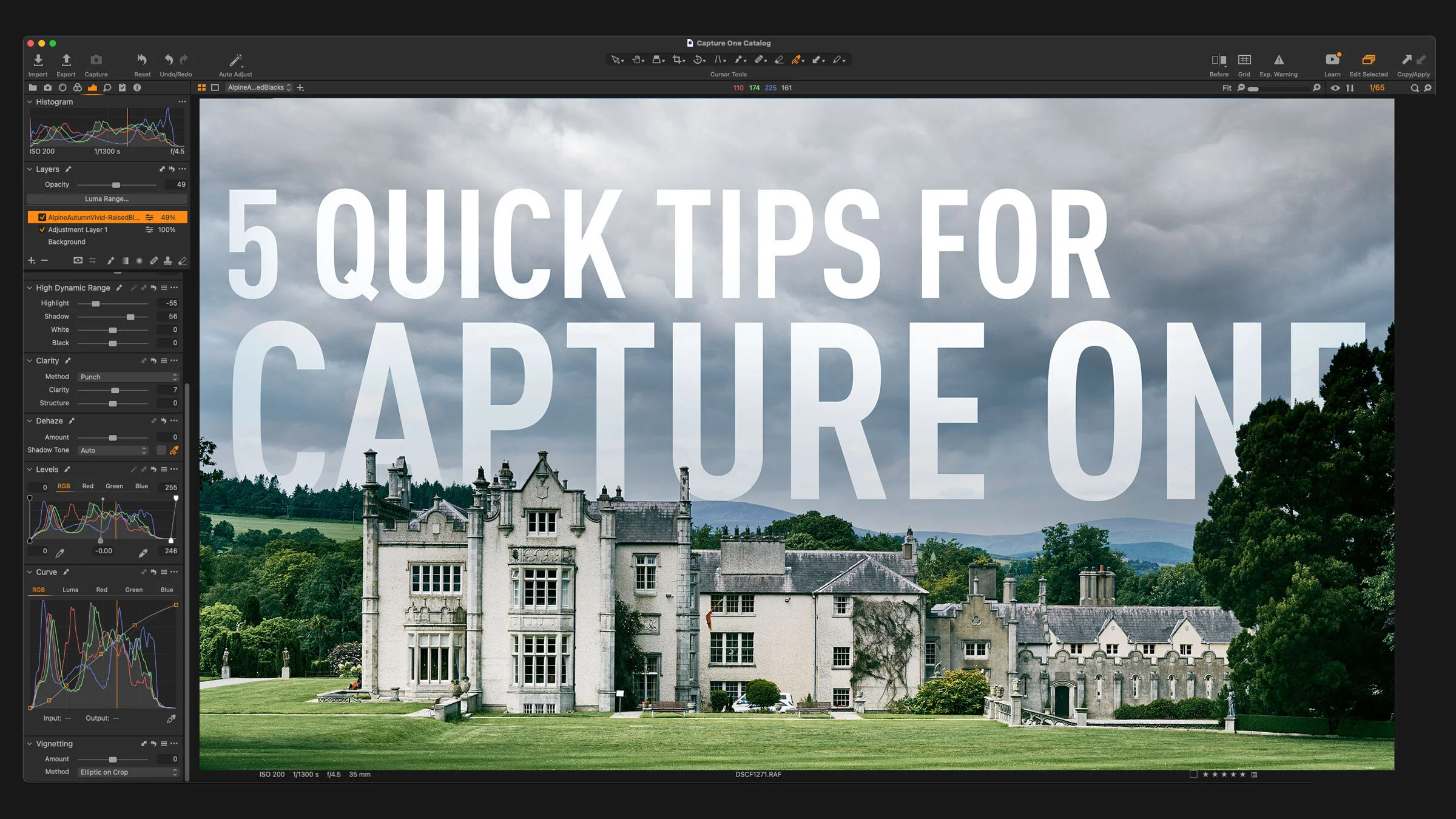
5 Capture One Quick Tips

If you’re a Capture One user there are lots of little things that you may or may not be aware of that can actually help your workflow, but are too small to put in an article all by themselves! So, I’ve collected a few of these quick tips into a single post. Depending on your experience level, you may have come across some or all of these before, but for beginners or Lightroom switchers, I hope you find some of these useful.

My Go-To Sharpening and Noise Reduction Starting Point Settings in Capture One for any Camera’s Raw Files

One of the things some people often like about Capture One when they first try it is that they find it gives them sharper images or more detail than other software. However, I also often see complaints that details can look pixelated and over-processed. Depending on your camera and the type of images you take, you may notice this too, especially with older images. In my opinion, Capture One’s defaults are set too high. Whenever I get a new camera, it often takes me a little time to get the settings just right, but in the following post, I’ll share the parameters I often use when in a hurry, or where I start with when dealing in a new camera.