All in Capture One

Some Resources To Learn Capture One

If there’s one issue I hear over and over again about Capture One is that its hard to learn. I actually don’t think that its a difficult application to use, but a big part of the problem is the difficulty people have in finding proper learning material. So, in this post, I’m going to do my best to point you in the right direction. I will also keep updating this as I find more valuable resources.

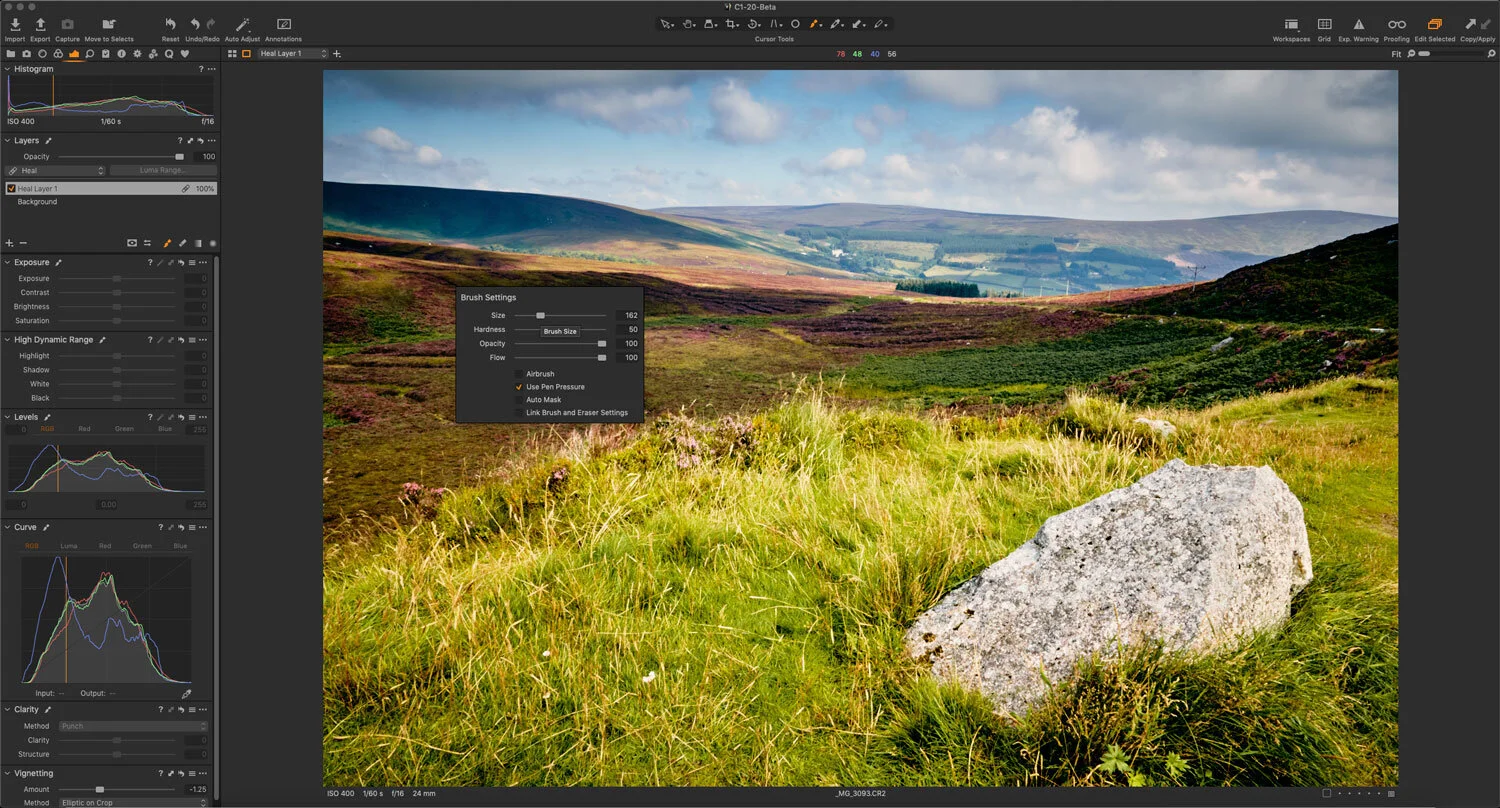
A Quick Tip to speed up Object Removal (Cloning and Healing) in Capture One

One of the areas that causes people some consternation and confusion when using Capture One is the task of removing objects. In particular, some users have issues with the way clone and heal layers work. I’ve seen a lot of complaints about the way you go about cloning and healing in Capture One, and how cumbersome a workflow it is. However, there’s one really simple tip that will speed up your workflow.

Capture One Basics - Exposure Tools & Controls

A quick tutorial on the basics of using the exposure controls in Capture One. I look at using the exposure, shadows, highlights, blacks and whites, and levels and curves control in Capture One on a real-world image. I took a “normal” image and walked through the process of “correcting” the photo, using various tools in the “Exposure” tab in Capture One.

Capture One is not Lightroom (If you struggle with Capture One, understanding how it’s different may help)

Whenever I read people struggling to get to grips with Capture One, one of the most common sources of frustration is generally from people trying to use Capture One like it is Lightroom, and expecting the same results. I can not emphasise this enough, but Capture One is not Lightroom. It’s a different application, and it behaves differently in a great many ways.

How to get Classic Negative and Bleached Bypass on Unsupported Fuji Cameras (with Capture One)

When Fuji launched the X-Pro3 they added a new film simulation to the camera: Classic Negative. Some had hoped that this might also be added to the X-T3 and X-T30 cameras via a firmware update, but it never happened (at least, not yet). Well, there actually is a way to get Classic negative if you own any of the 26mp generation cameras - specifically the X-T3 and X-T30. Well, sort of. If you shoot RAW and use Capture One, it will actually let you select Classic Negative as one of the options. But, what about users of older cameras, and what about the even newer Eterna Bleached Bypass that comes with the X-T4? Well, read on for more…

Eos RP - Capture One vs Lightroom Follow Up (And Custom Lightroom Profile)

A little while ago I wrote a post about the Canon EOS RP and how the RAW files were looking in Lightroom compared to Capture One. I had noted that RAW images from the camera looked pretty flat in Lightroom and that for some bizarre reason, Adobe had not supplied camera matching profiles for the camera (or a number of recent Canon models) and if you opened the same image in Capture One they had much more impact before even doing any editing. At the time I was working with RAW files I downloaded from DP Review, and so couldn’t share my results. Since then a reader has kindly sent me some raw files that I can use, and so now I can show you what I mean.

Working With Capture One and Affinity Photo

One of the questions that I get asked a lot is about using Affinity Photo with Capture One. For those who want to cut the Adobe chord, Affinity Photo is the most popular alternative to Photoshop, and it makes a good companion to Capture One. Even if you still use Lightroom and Photoshop, many still like Affinity Photo for its modern user interface and speed. Round tripping between the applications is fairly straight forward, but there are still a few things to be aware of, which I will cover in this post.