All in Lightroom

A Sneak Peek at Film Lux for Lightroom

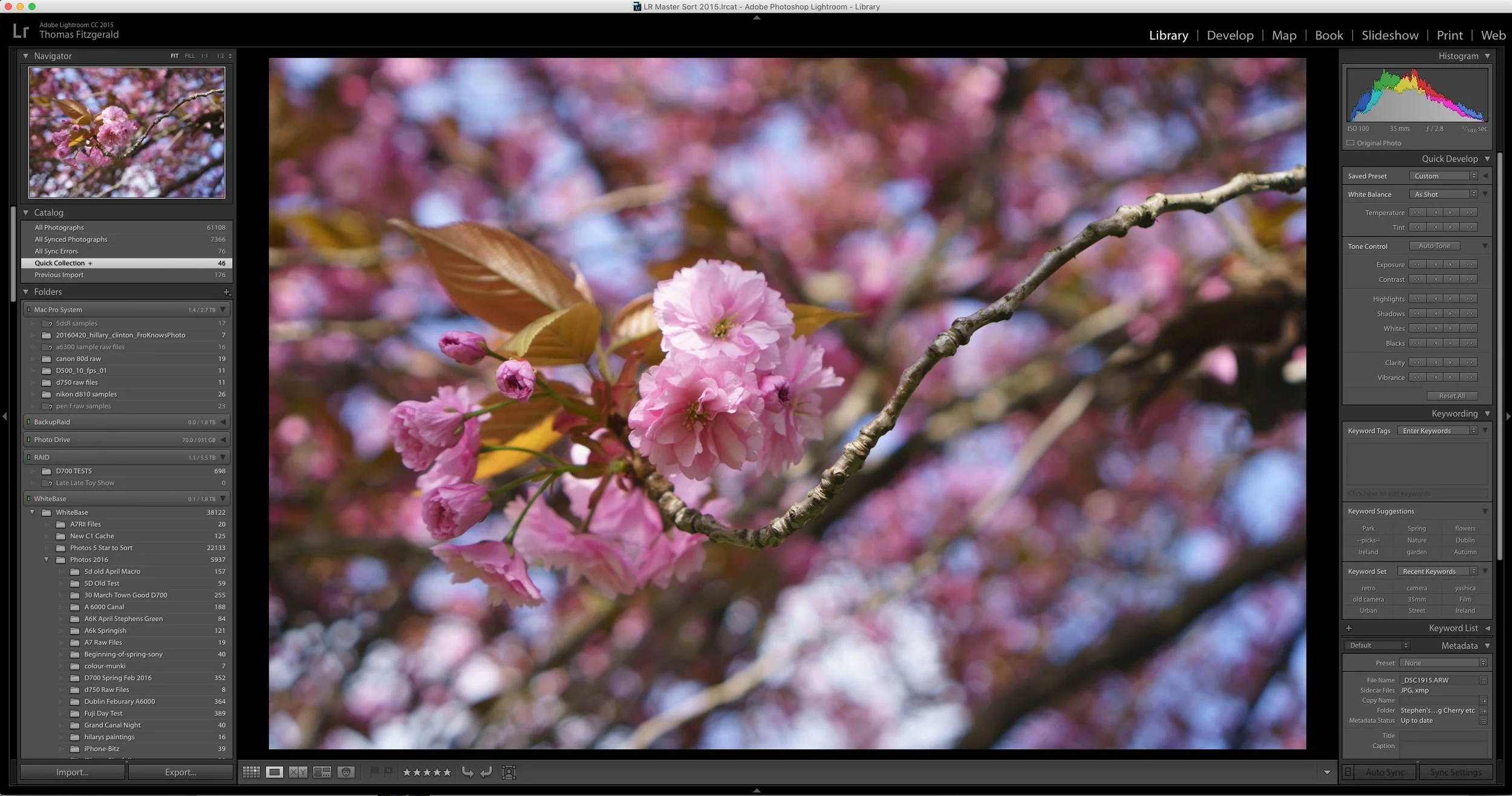
It’s been a while since I last released a set of Lightroom presets, despite my plan to release one set a month this year. I’ve actually been working on a new set for a while now though, and I’m excited about the results. Called “Film Lux” it’s a continuation of my “Lux” series,and this time it’s about some more realistic film styles. 

Nasty Lightroom Memory leak

I’ve been plagued by a nasty bug in the latest version of Lightroom on the Mac. It’s affected me several times now, and the same action triggers it, so it’s not a a random one off. On top of that I’ve read similar stories online from people with similar issues. Basically, every so often, when you open the import window, the memory usage of Lightroom goes through the roof and the application becomes frozen. If you don’t force quit the application quickly after this happens, the entire system hangs.

Archiving Projects in Lightroom

There are times that it feels like I’m playing a constant battle with hard drive space. I’m sure that many photographers feel like this at one time or another (or all the time). My Lightroom Library is a giant mess. I’m the first to admit that, and it’s not particularly well organised. I have images littered across multiple drives and I’ve lots of older projects which I don’t really need access to the raw files, but are still online. So, once again, I’ve started trying to tame the beast, and I’ve a few new strategies for dealing with it that I thought you might find interesting.

Lightroom Quick Tip: Drag and Drop Behaviour

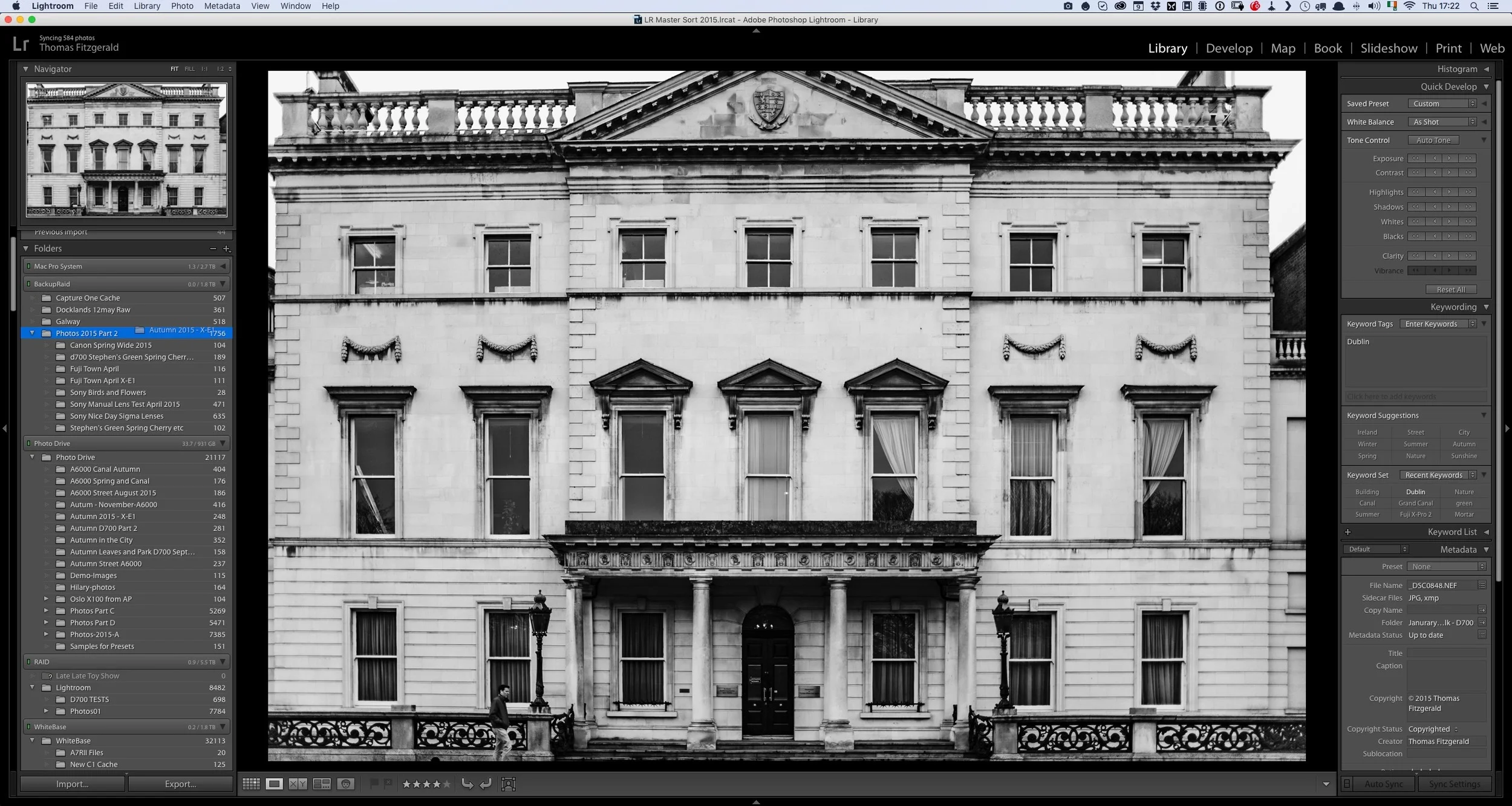
There are lots of ways to get images into and out of Lightroom. For importing, you can import from the import dialog box, or by setting up the auto import., or by synchronising an existing folder. For outputting, you can export via a variety of settings, or use one of the publishing plugins in the Library module. But what happens when you drag and drop images into or out of Lightroom?

The Lightroom Diary is Back

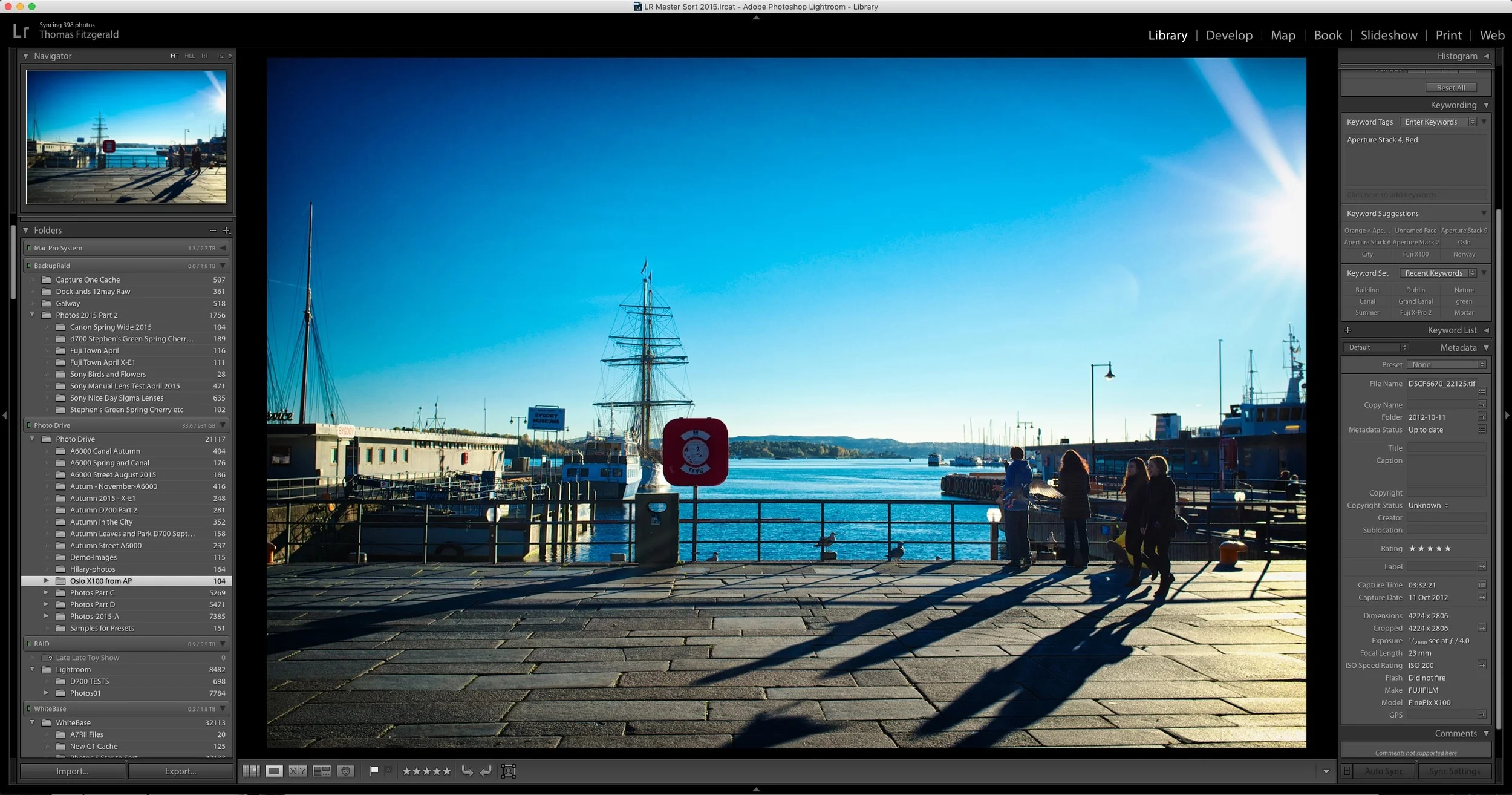
A while ago I was publishing another blog for Lightroom, called "The Lightroom Diary" and at the time it had become too much trouble for me to post to both that and this, my regular blog. So I shut it down and consolidated all the Lightroom posts here. I said at the time that I might start it back up again, and so now I have.

Why you probably shouldn't Sync your Lightroom Catalogue via Dropbox

An interesting topic came up for discussion recently between some colleagues. We were talking about how nice it would be if Lightroom let you sync projects between a laptop and a desktop, and someone suggested that you could just put your catalogue on dropbox and sync it that way. If you google this there are lots of tutorials for various ways to set this up, but in my opinion, while that might sound like a good idea or a simple solution, it's something that I personally would avoid doing, and here's why.

Lightroom's Guided Upright - Video

The headline feature in the latest version of Lightroom CC is the new guided upright feature. This new tool lets you set guidelines when using the "Upright" automatic correction feature. Rather than spend a long time talking about it, I made a quick video to show you the feature in action.

Lightroom CC 2015.6 and Lightroom 6.6 Released

Adobe has released another set of updates to Lightroom. Both feature performance and bug fixes and the CC version has some new features. It's actually a little confusing as to which feature is in which version, but anyway. The big news is the new "Guided Upright" feature, and the re-design of the Lens correction panel into two separate panels.

Sync Your Lightroom Presets to Multiple Macs using ChronoSync and DropBox

One of the things that I often find frustrating when working in Lightroom on both a laptop and a desktop, is keeping my presets in sync. I often have presets on my desktop, which I will use quite often, and then when I switch to my Laptop and I try to find them, I realise I don't have them. I've been thinking for a while about ways to help alleviate this problems, and I've come up with a solution. This won't be for everyone and I'm sure there are lots of other ways to do this, but it should you an idea of at least one way to go about keeping your presets in sync.

Caption and Title your Images using Lightroom on the Web

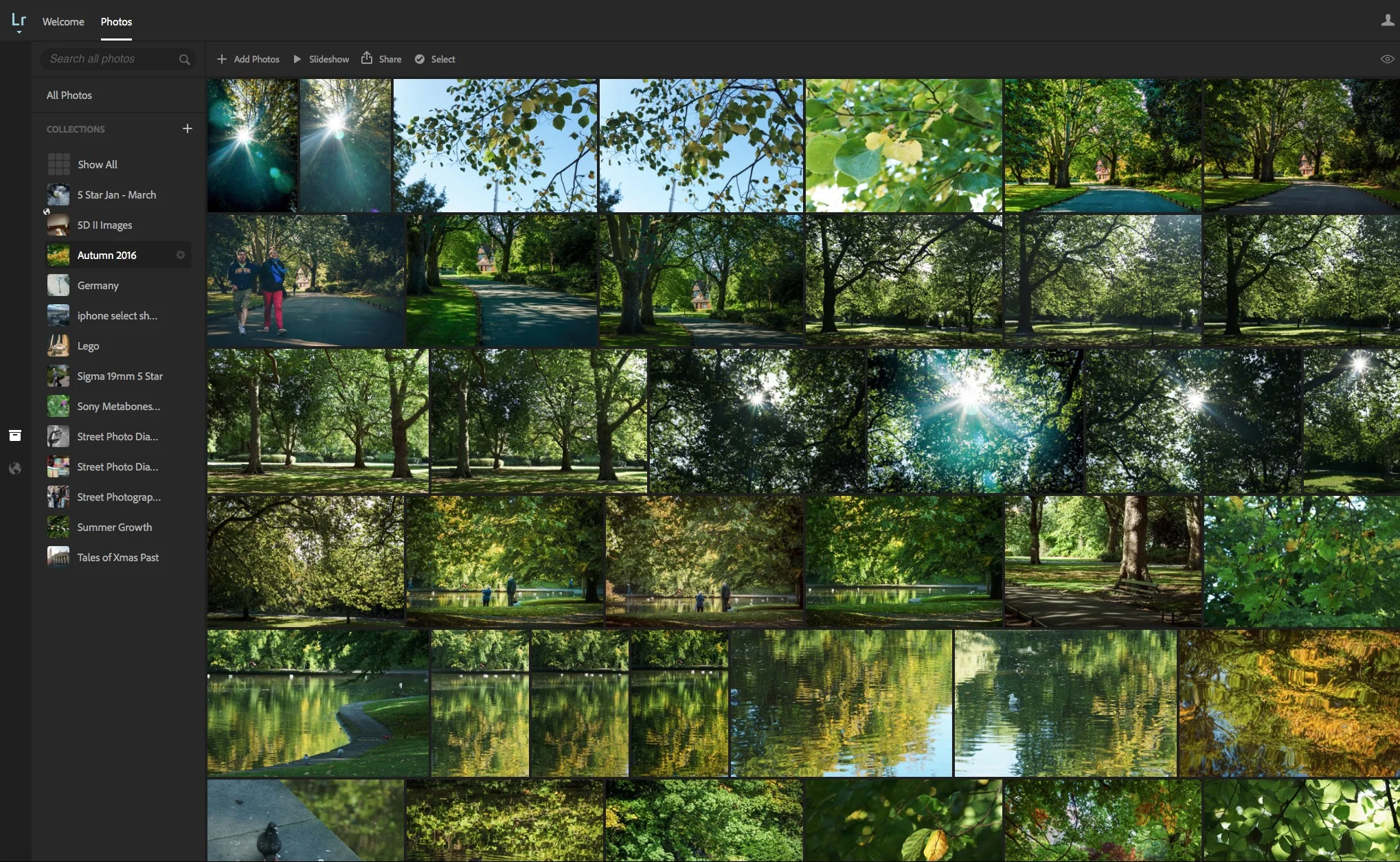
One of the things that I really don't like about Lightroom is the interface for captioning and titling your images. I don't like the metadata ui in general, but in particular, in my opinion, the captioning interface is a pain to use. The entry fields are small, and the text is small, and the section is stuck down in the bottom right hand corner of the screen. It's difficult to read and it's cramped. While there is a "Large caption" option, it still suffers from some of the same problems. I've always wished there was a better way to enter captions and titles. Well, it turns out there is. Sort of.

Quick Lightroom Tip: Clear Quick Collection

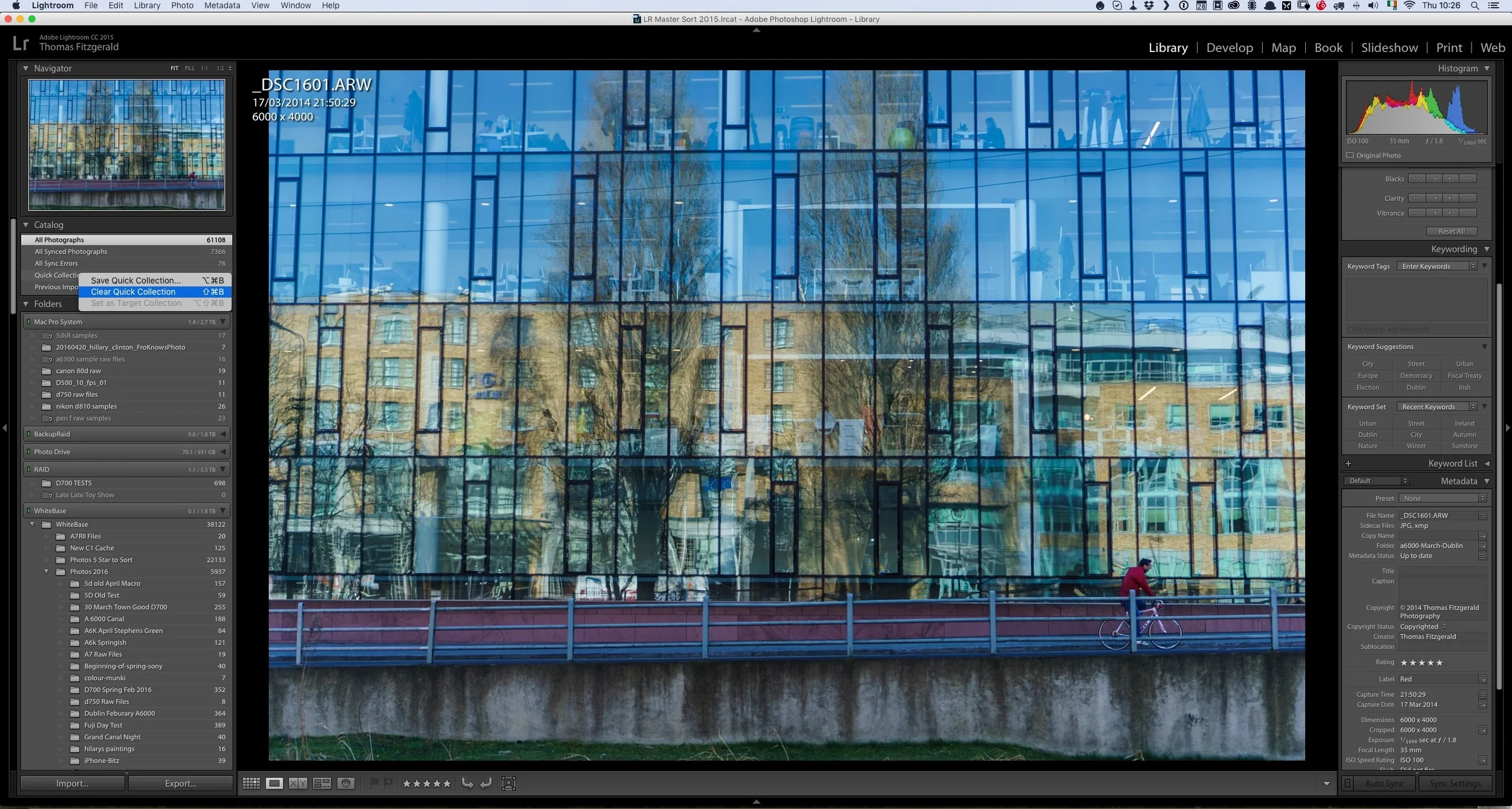
Here's a very quick Lightroom tip for you. I often use the quick collection in Lightroom as a sort of temporary clip board or place to collect some images that I'm either collecting for a blog post, or for a comparison and so on. Sometimes I will be in the processing of going through images , and I may have set some search filters in the library or something similar, when I decide that I may want to add some images to the quick collection. However, I already have images in it that I no longer want, but I don't want to leave the current view to go to the quick collection. 

How to use Affinity Photo as an External editor for Lightroom

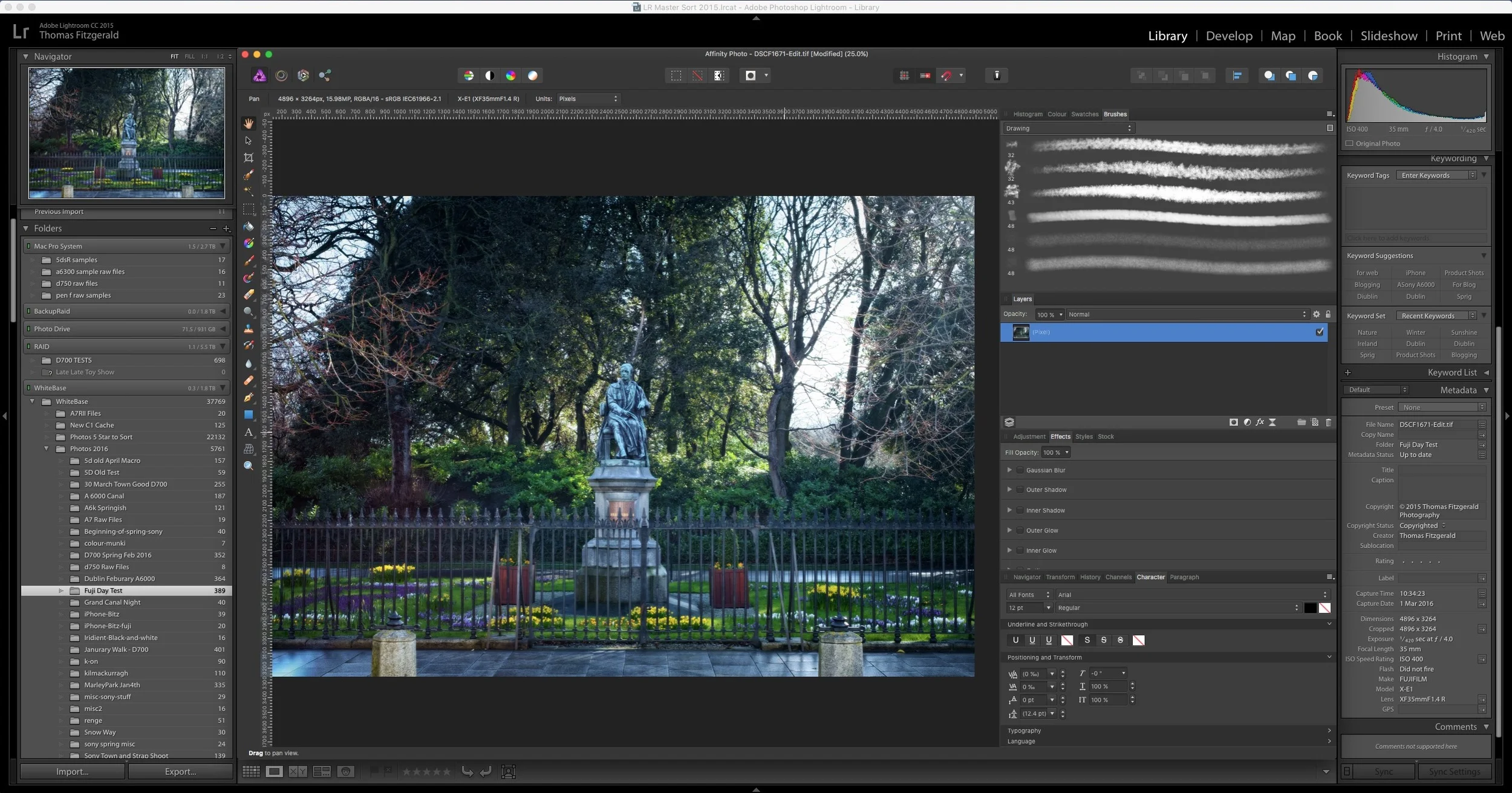
I briefly covered Affinity Photo in a previous post, and it is an excellent Photoshop alternative. I've been using it more and more lately, and that includes using it in conjunction with Lightroom as an external editor. This is pretty easy to set up but there are a few limitations unfortunately. However, there are significant advantages to using the software in lieu of Photoshop. In this post I'll show you how to set up Affinity Photo to work as an external editor, and I'll discuss some of the limitations and advantages of using Affinity Photo with Lightroom.

Quick Lightroom Tip: Regenerate Previews after you've finished with a project

Here's a very quick Lightroom tip for you. One of the frustrating things about the way Lightroom's preview system works is that it only generates previews when you tell it to, usually upon import. As soon as you make any changes to an image, the preview for that image is lost. In order to make sure you can keep browsing through your library speedily, it's important to periodically re-build previews.